Creating a New Wallet⚓︎
This page explains how to create a new wallet in the Symbol Mobile Wallet App. If you already have a backup phrase and want to restore an existing wallet, follow the Importing a Wallet guide instead.
The app can manage multiple accounts in a wallet. If you only need to create another account, you may not need to create a separate wallet.
See the introduction for more information about wallets and accounts.
Prerequisites⚓︎
- Make sure you have installed the Symbol Mobile Wallet. If you have not done that yet, see the Installing the App guide.
Only one wallet can be active at a time
The Symbol Mobile Wallet App handles one wallet at a time. If a wallet is already active, the option to create a new wallet will not be shown.
To create a different wallet, first log out from the current one. Before doing that, make sure you have backed up the current wallet's mnemonic phrase so you can recover it later if needed. If it contains external accounts, also make sure you have backed them up.
How to Create a Wallet⚓︎
Follow these steps to create a new wallet in the Symbol Mobile Wallet:
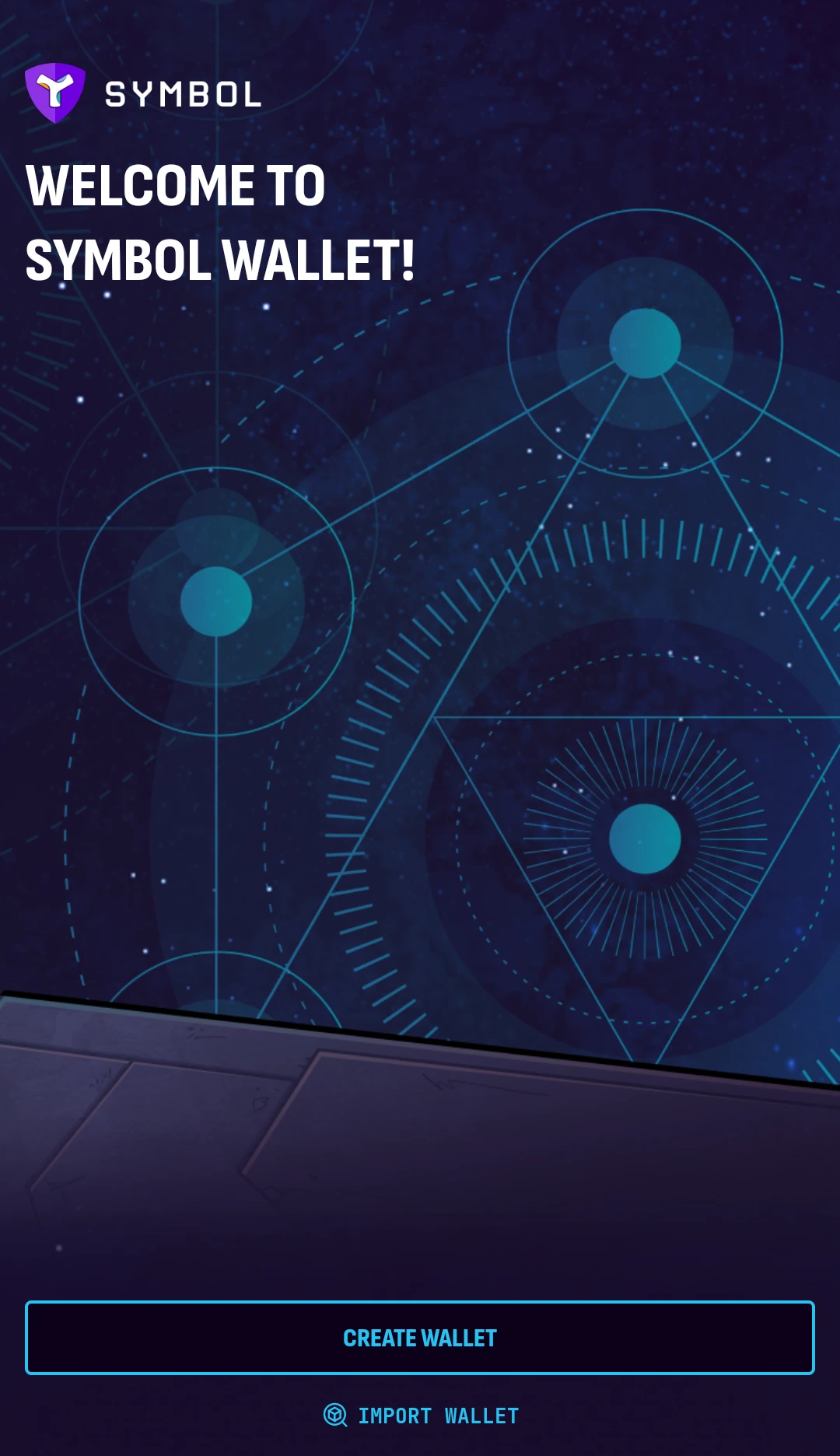
1. Open the Symbol Mobile Wallet and tap Create Wallet.
If you do not see the welcome screen, a wallet is already active and you need to log out or create an account inside it instead.
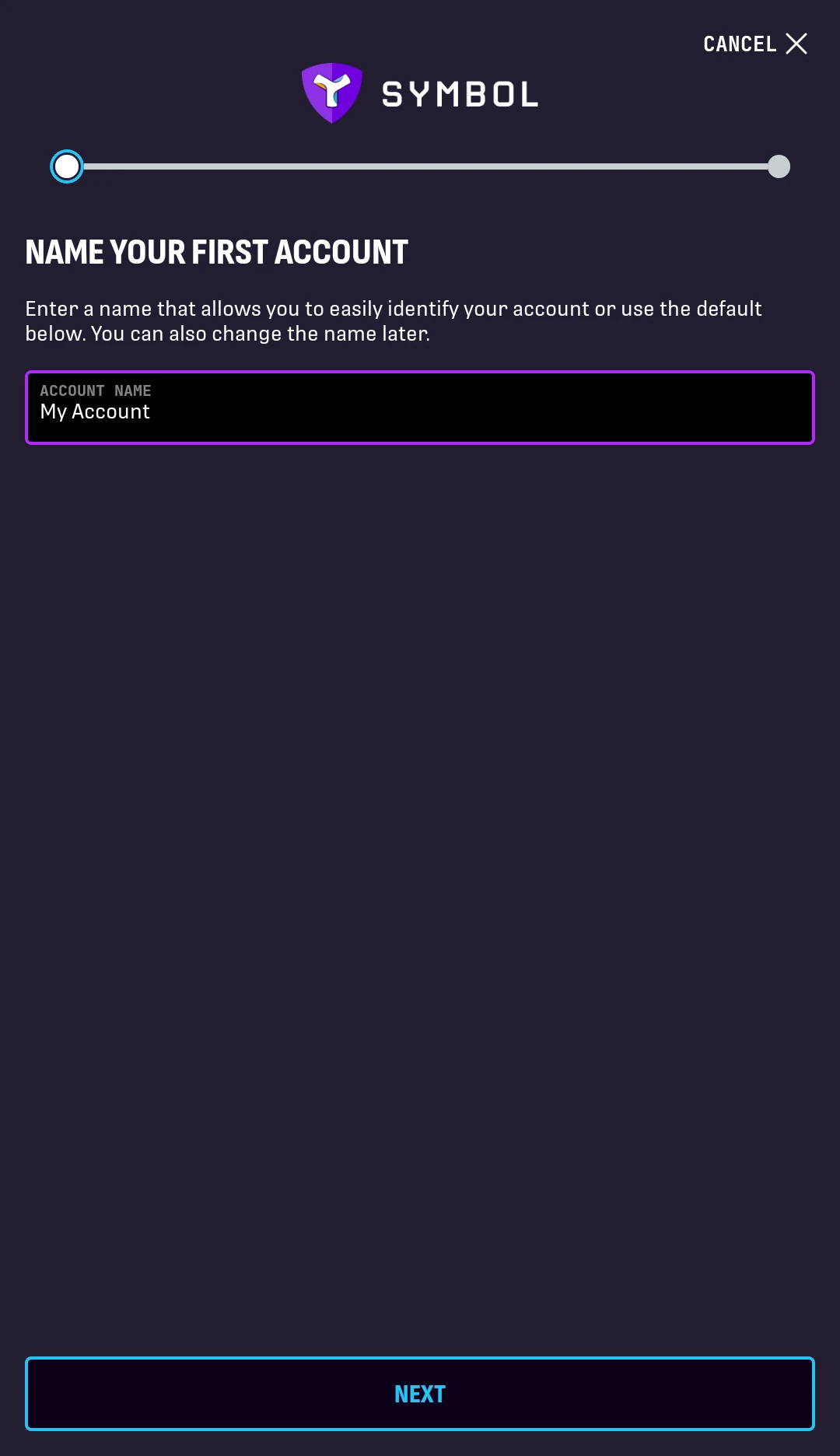
2. Enter a name for your first account.
This label helps you recognize the account later. You can keep the default name or choose your own.
Tap Next.
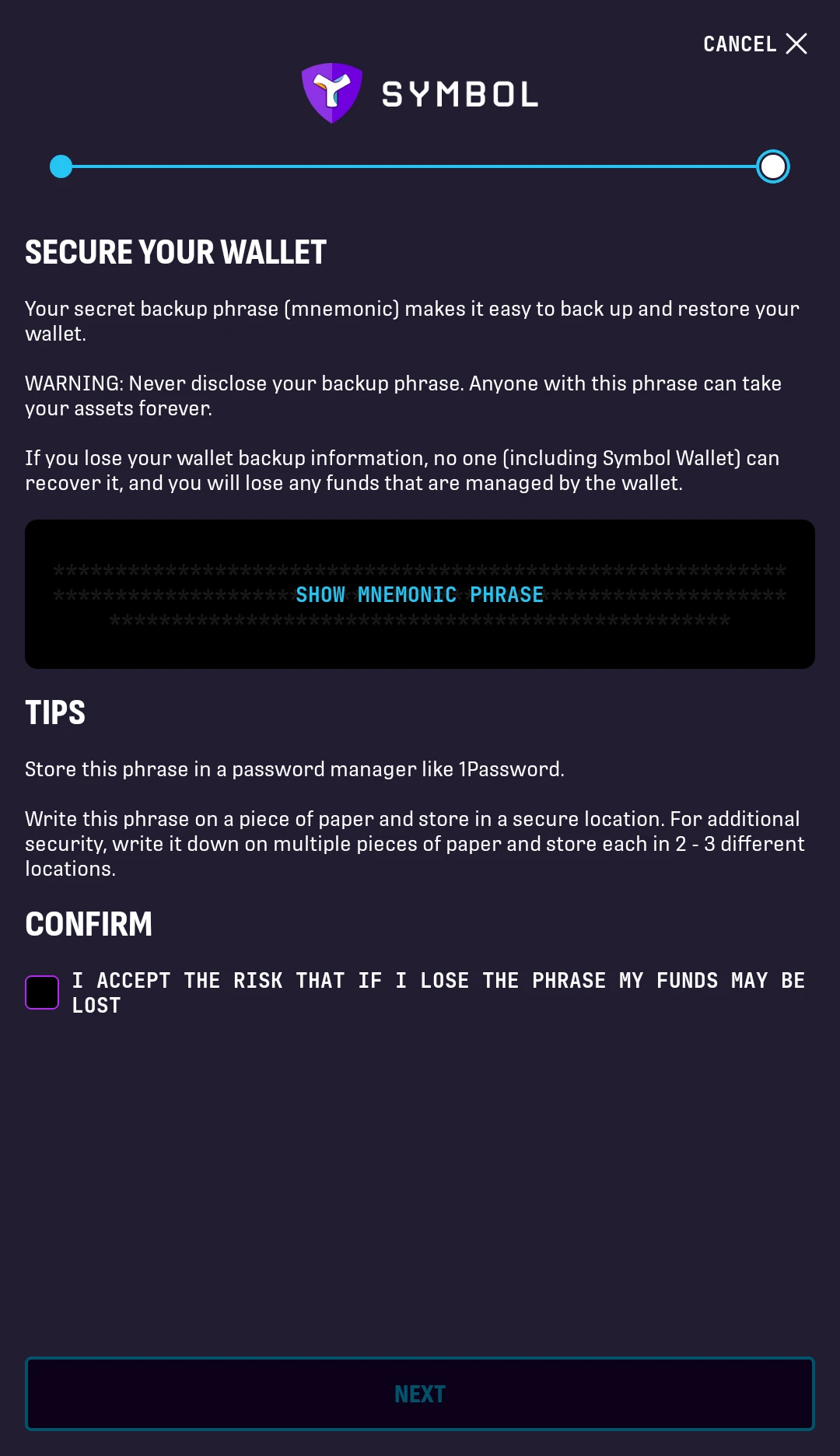
3. Tap Show Mnemonic Phrase to reveal your backup phrase.
Write the phrase down in the exact order shown.
Store it somewhere safe, such as an offline backup location.
After you have saved it, check the confirmation box to accept the risk of losing the phrase, then tap Next.
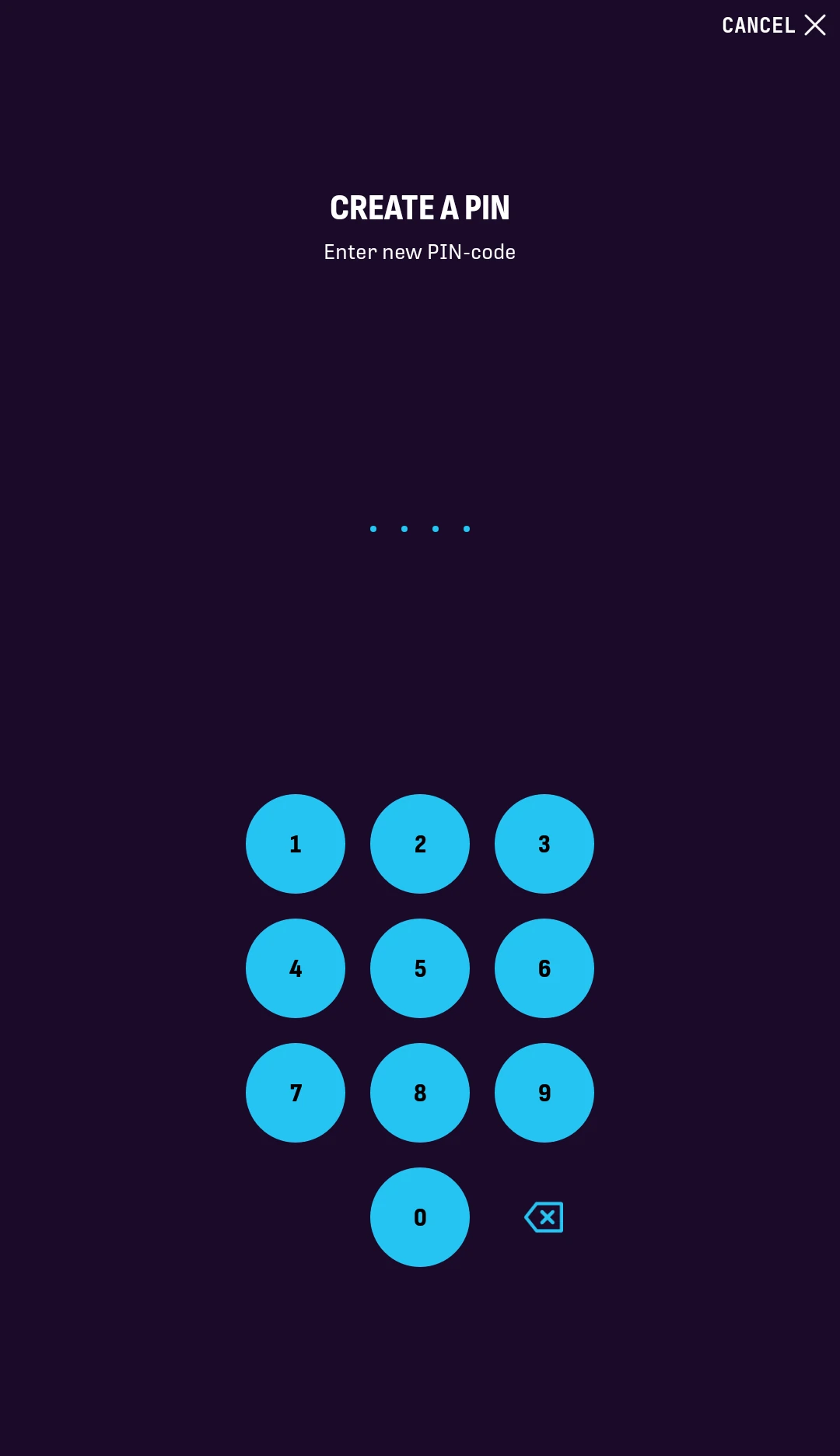
4. Create a PIN code and confirm it.
This PIN protects access to the wallet on your device.
Choose one you can remember, but do not share it with anyone.
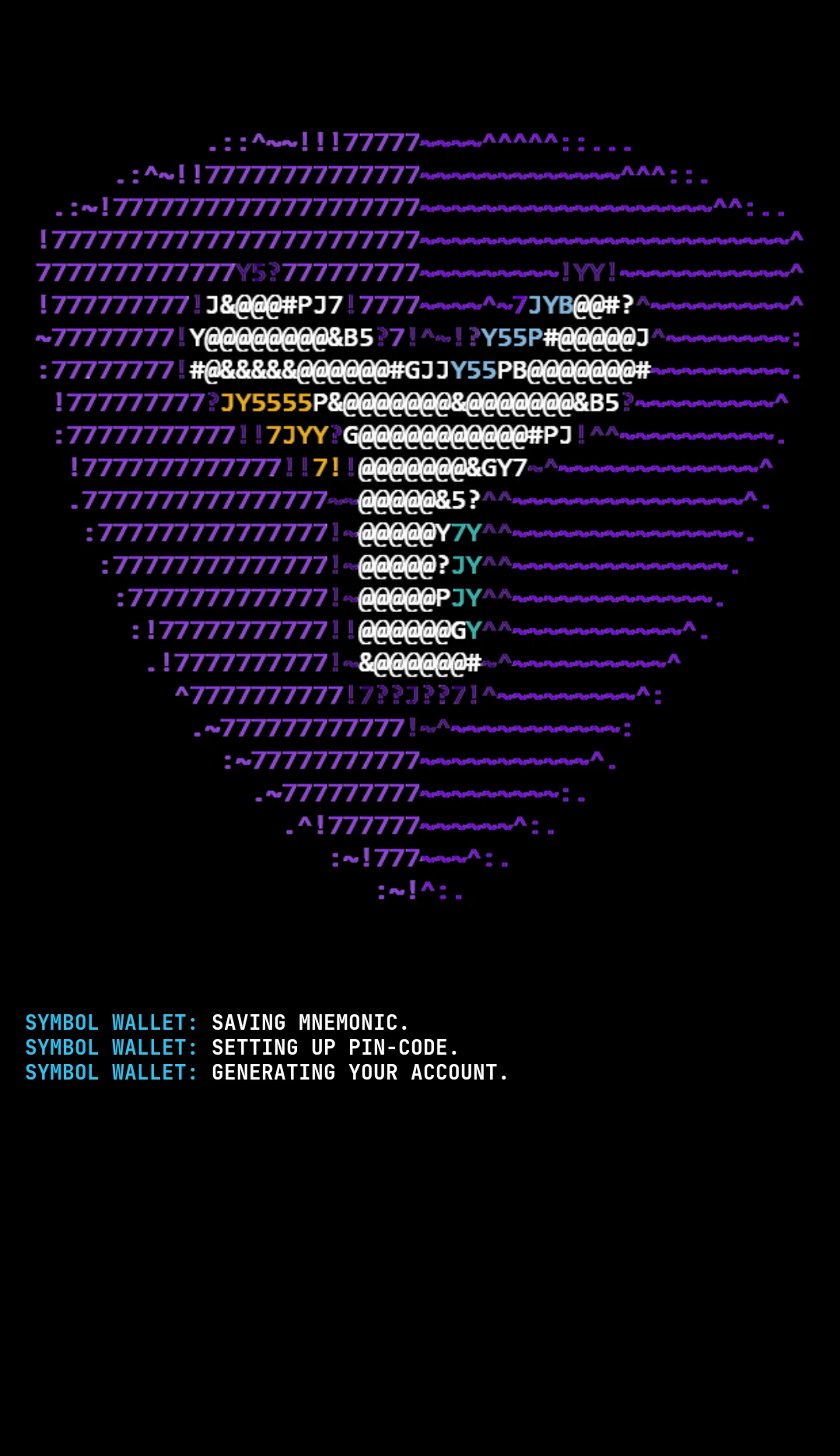
5. Wait a few seconds while the app finishes setting up the wallet.
You will be taken to the HOME screen:
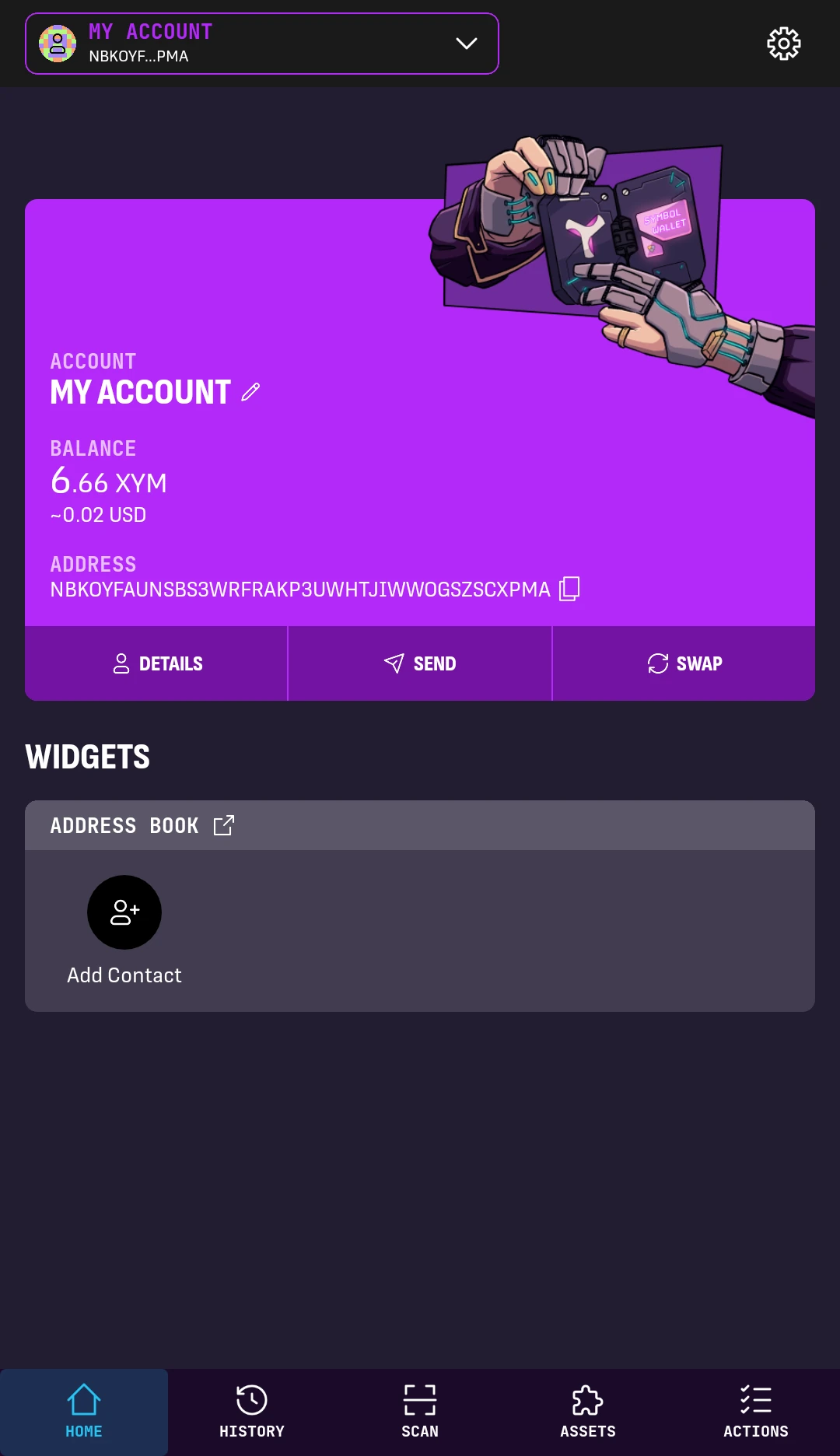
Your first account is ready to use. You can share its address to receive funds or use the app to send transactions.
Next Steps⚓︎
Your new wallet is now ready to use.
- Keep your mnemonic phrase backup secure.
- You can add more accounts to this wallet if needed.
- Review the Security guide before receiving or sending funds.