Checking Transaction History⚓︎
This page explains how to check the transaction history of an account in the Symbol Mobile Wallet App.
The history screen shows past transactions involving the selected account. For example, after Sending Funds and Messages, you can use the history to review the transfer from the sender's or recipient's point of view.
Prerequisites⚓︎
-
Make sure you have installed the Symbol Mobile Wallet. If you have not done that yet, see the Installing the App guide.
-
You must already have a wallet set up and unlocked in the app. See Creating a Wallet or Importing a Wallet if needed.
How to Check the Transaction History⚓︎
Follow these steps to check an account's transaction history:
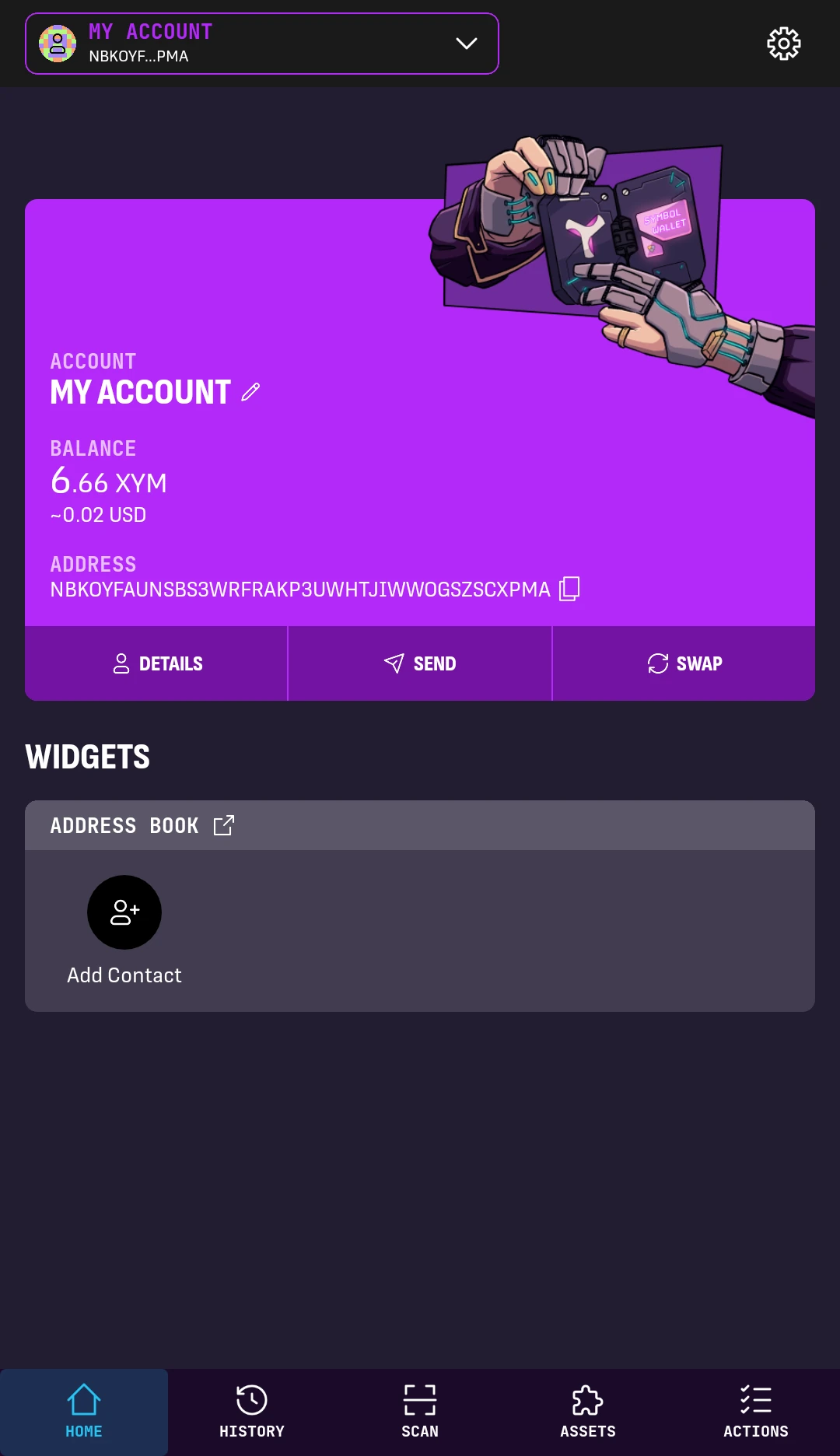
1. From the wallet's HOME screen, select the account whose history you want to check.
Then tap HISTORY at the bottom.
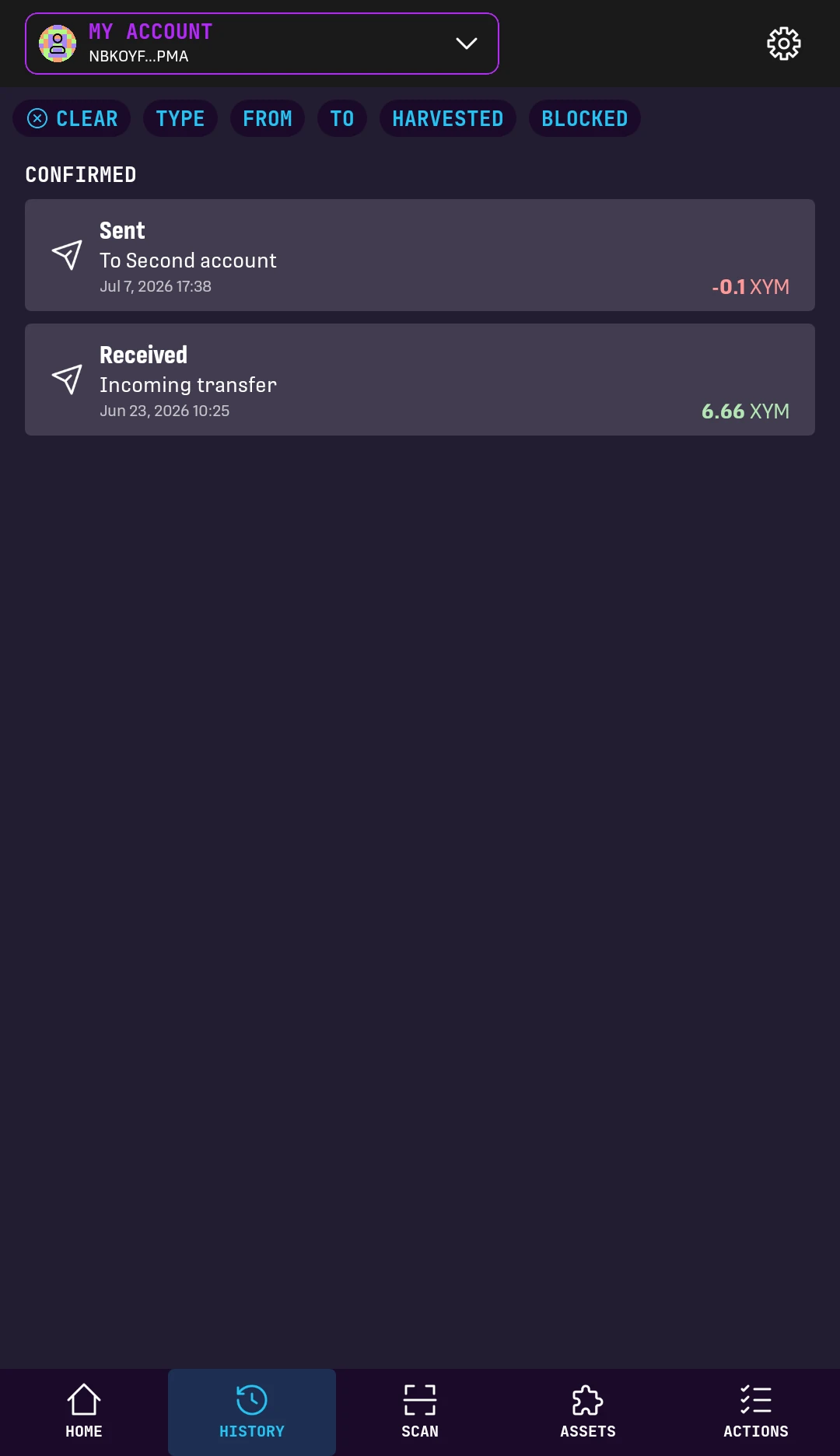
2. The history shows past transactions involving the selected account.
In this example, MY ACCOUNT is selected, and the top transaction is an outgoing transfer.
Tap the transaction to open its details.
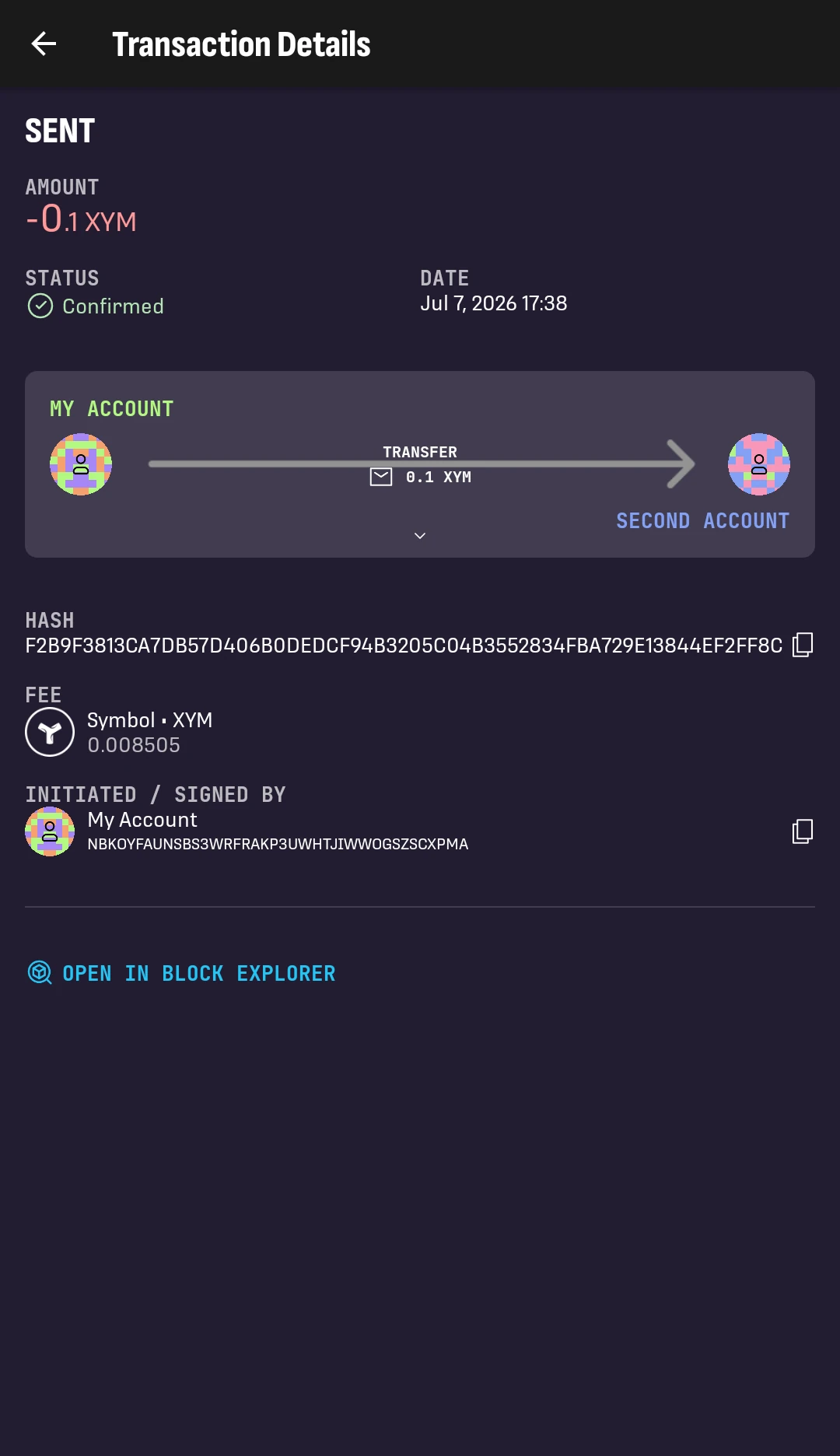
3. The details show:
- STATUS: whether the transaction is already confirmed.
- DATE: when the transaction was announced, in your local time.
- The transferred XYM amount.
- Sender and recipient addresses. If either address is in your address book, its name is shown instead of the actual address.
- The transaction HASH: useful to share with the recipient.
- FEE: the cost of the transaction.
- SIGNED-BY: the address that announced the transaction and paid its fee. This is relevant for aggregate transactions involving multiple accounts.
- OPEN IN BLOCK EXPLORER button: opens the transaction in a blockchain explorer.
Tap the long arrow to expand the details and get additional information.
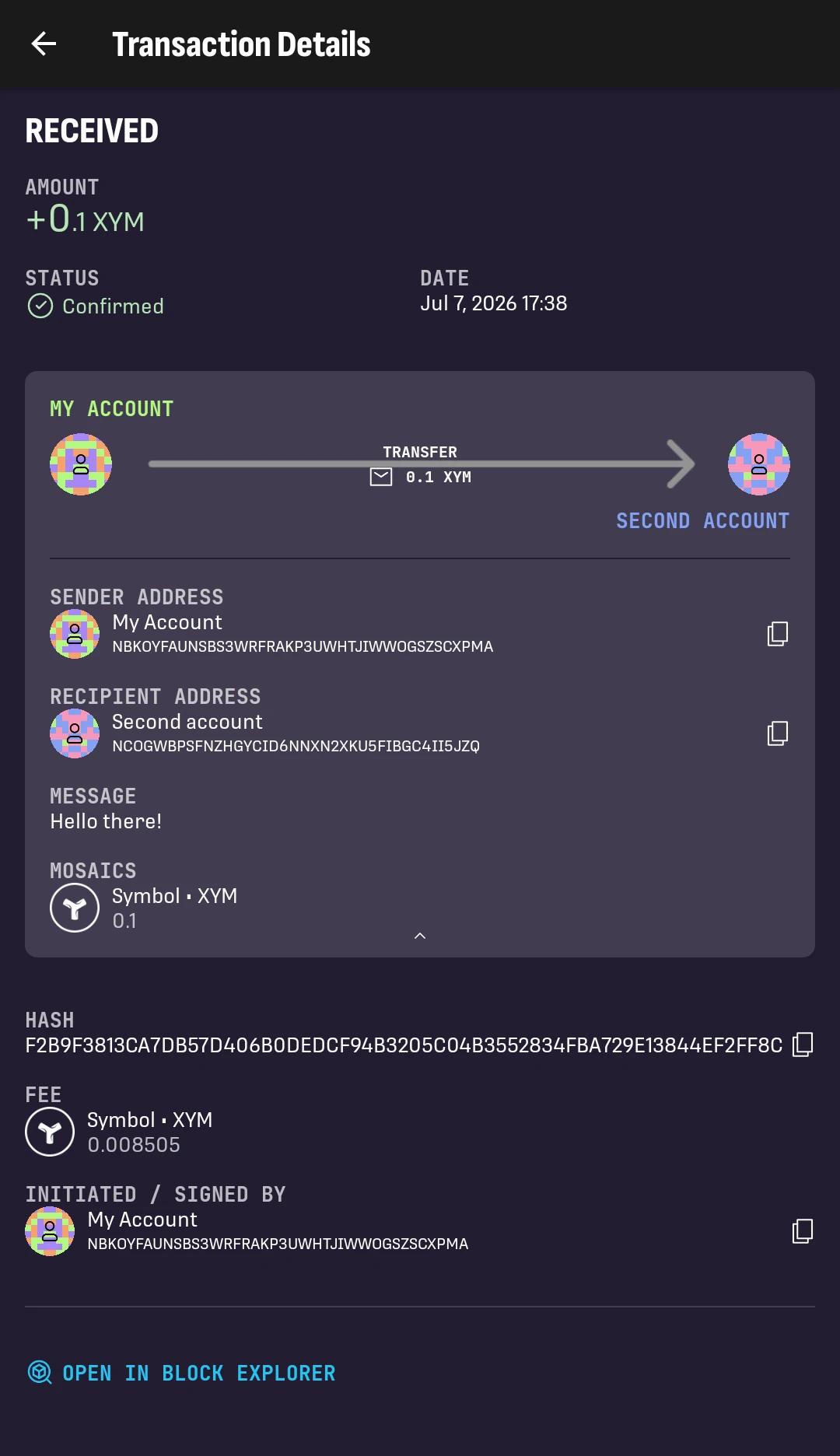
4. The expanded details show:
- SENDER and RECIPIENT addresses, along with their names if they are in your address book.
- MESSAGE: shown if the transaction included one.
- MOSAICS: the complete list of transferred mosaics. This is relevant when transferring mosaics other than XYM.
Tap the back arrow to return to the transaction history screen.