Sharing Your Address via a QR Code⚓︎
This page explains how to share an account address from the Symbol Mobile Wallet App using a QR code.
An account's address can be conveniently converted into a QR code that a second Symbol Mobile Wallet can scan. The scanned address can then be used as the recipient for a one-off transaction, or added to the scanning wallet's address book for later use.
Prerequisites⚓︎
-
Make sure you have installed the Symbol Mobile Wallet. If you have not done that yet, see the Installing the App guide.
-
You must already have a wallet set up and unlocked in the app. See Creating a Wallet or Importing a Wallet if needed.
-
The second device must also have the Symbol Mobile Wallet installed.
How to Share Your Address via a QR Code⚓︎
Follow these steps to show an account address as a QR code and scan it with another device:
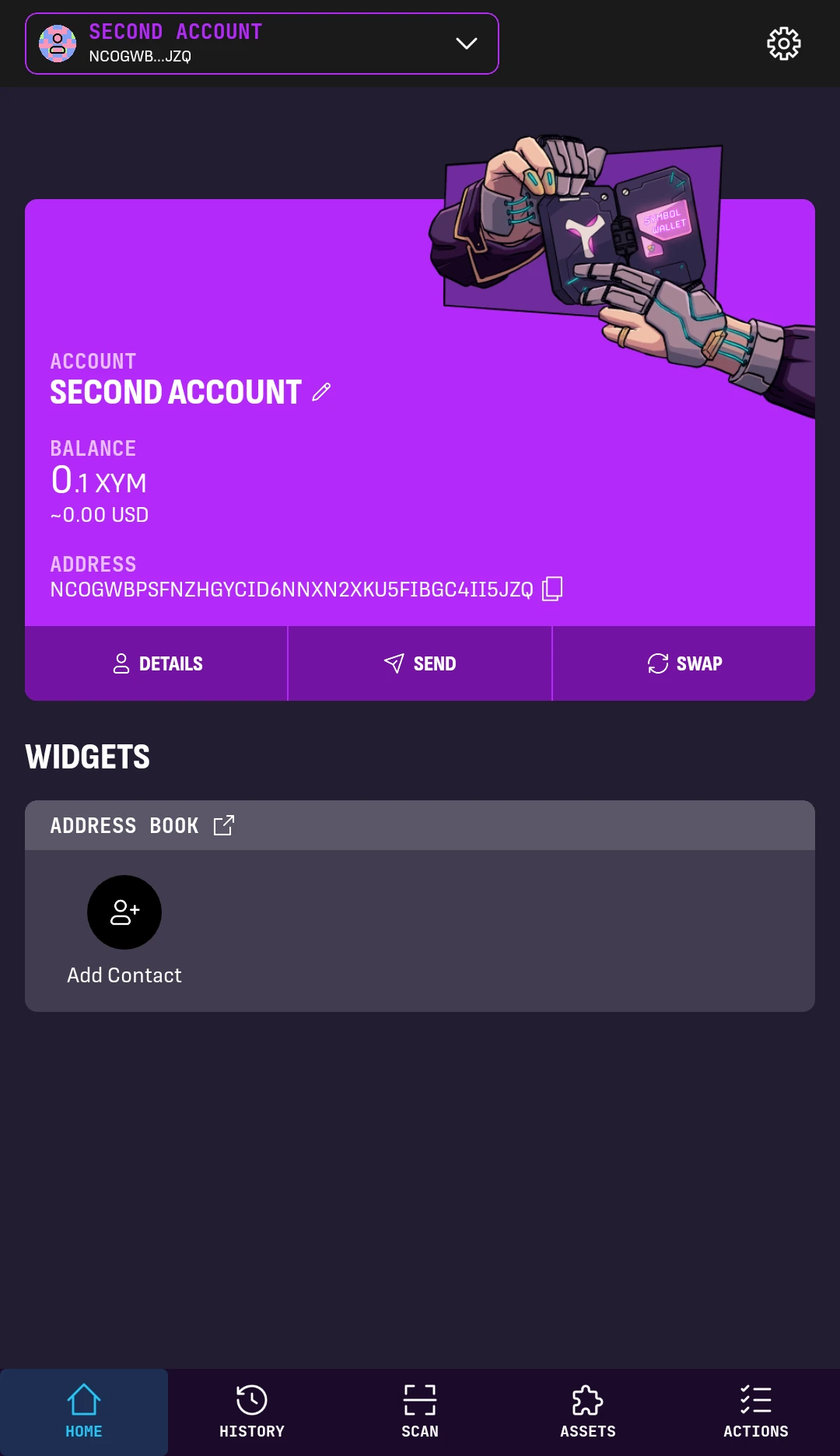
1. From the wallet's HOME screen, select the account you want to share from the account dropdown.
In this example, Second account is selected.
Tap DETAILS on the left of the account box.
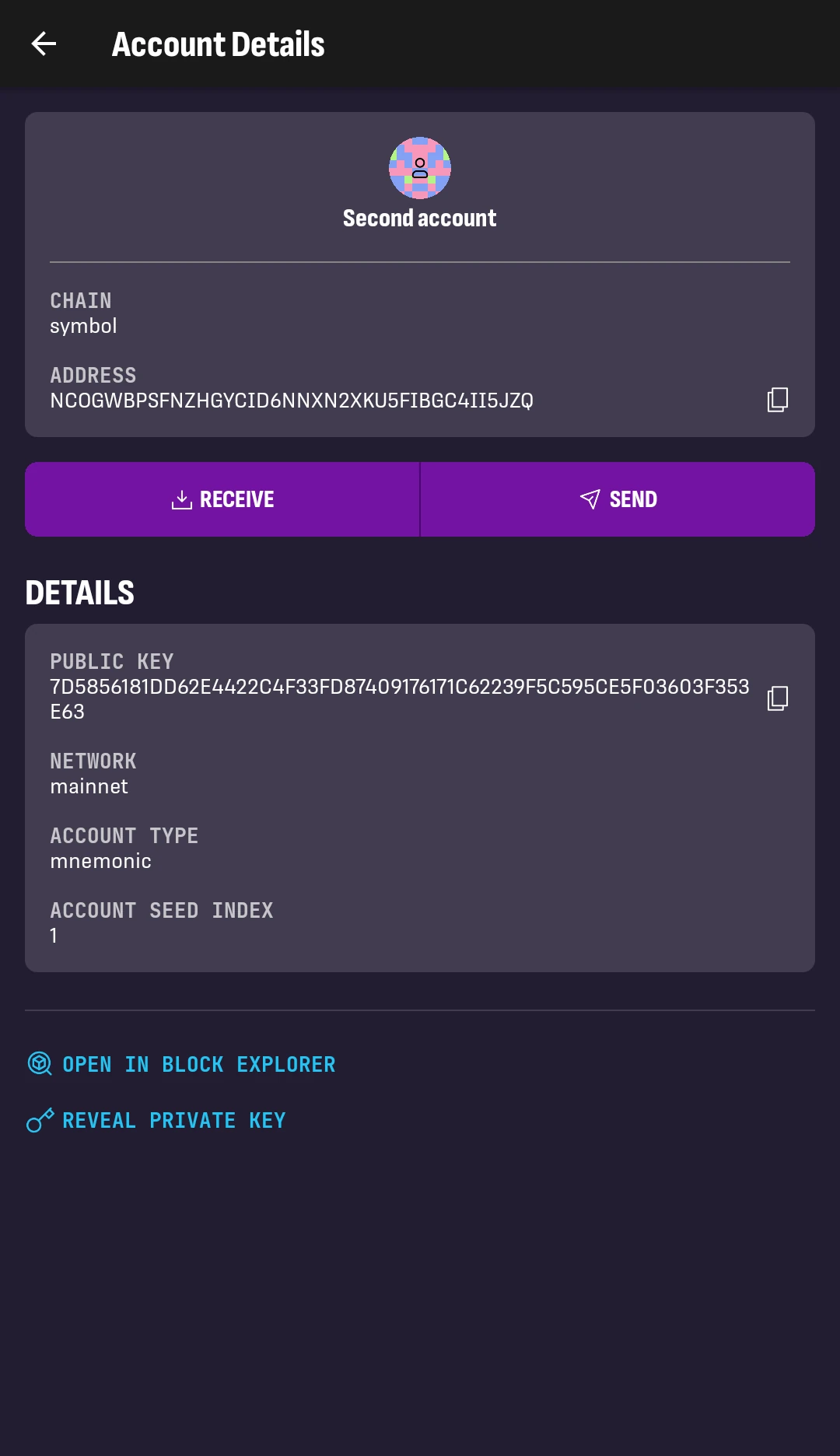
2. On the account details screen, tap RECEIVE.
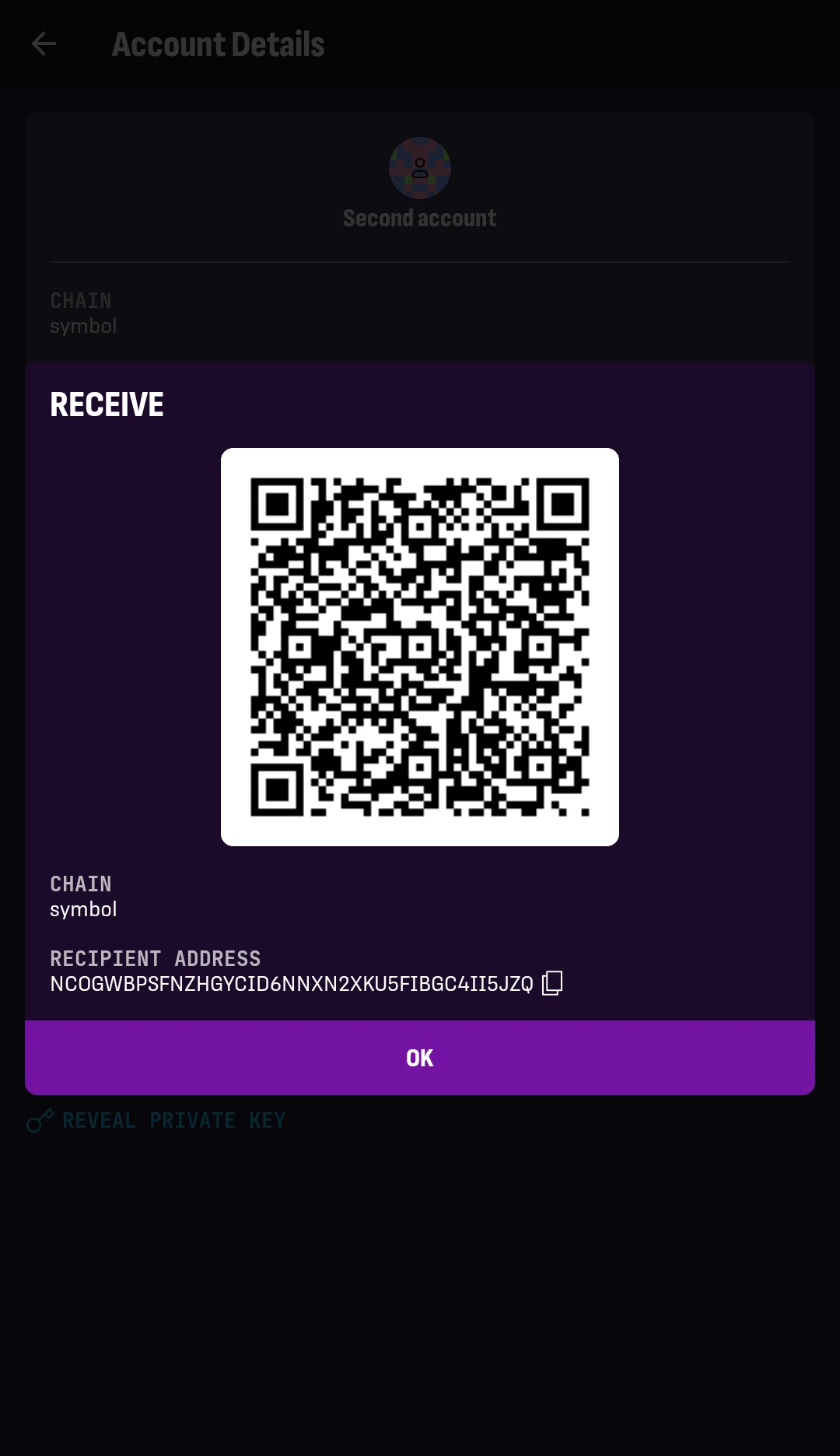
3. A QR code is shown for the account address.
Keep it on screen.
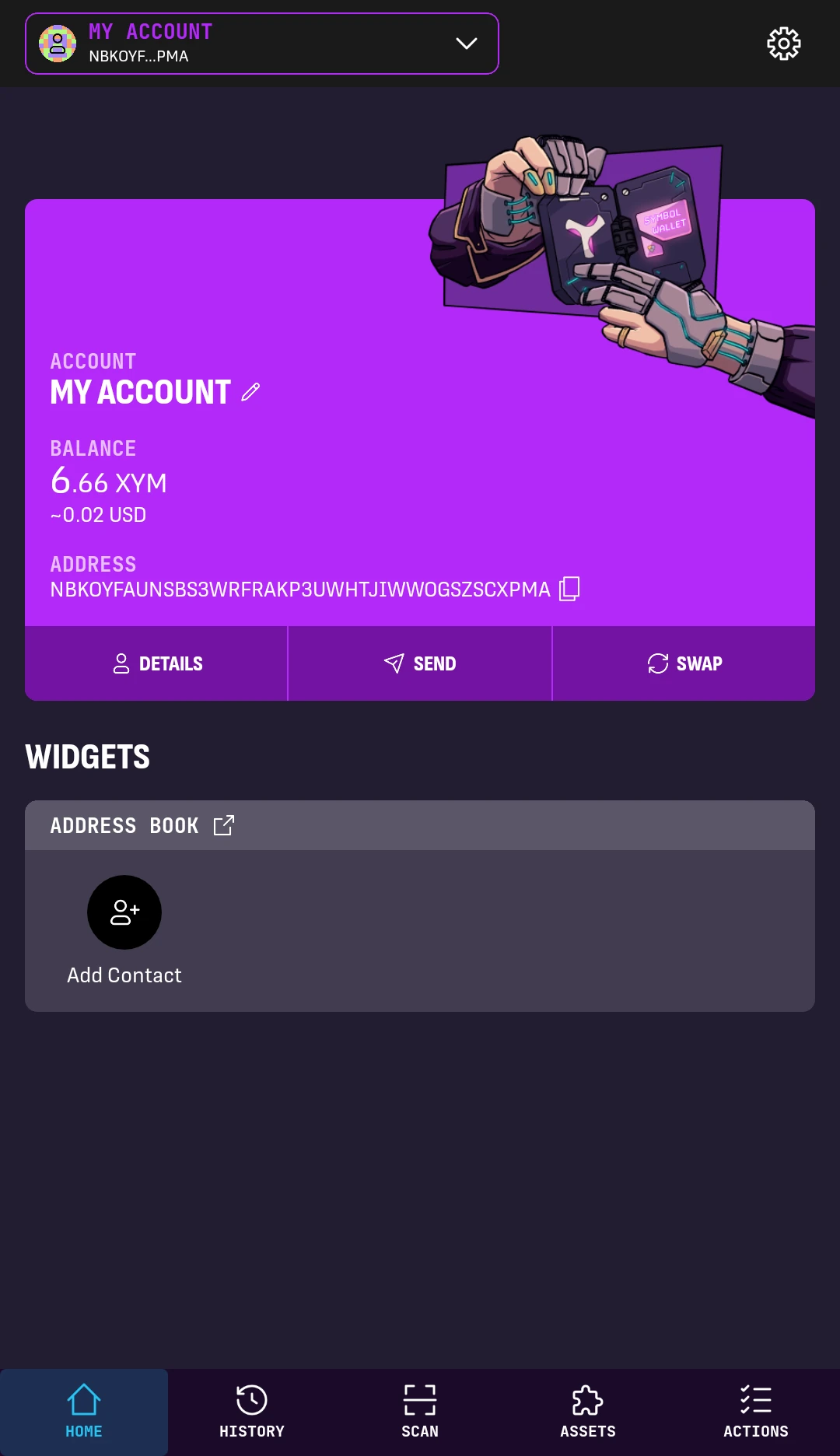
4. On the second device, go to the HOME screen, tap SCAN at the bottom, and point the camera at the QR code.
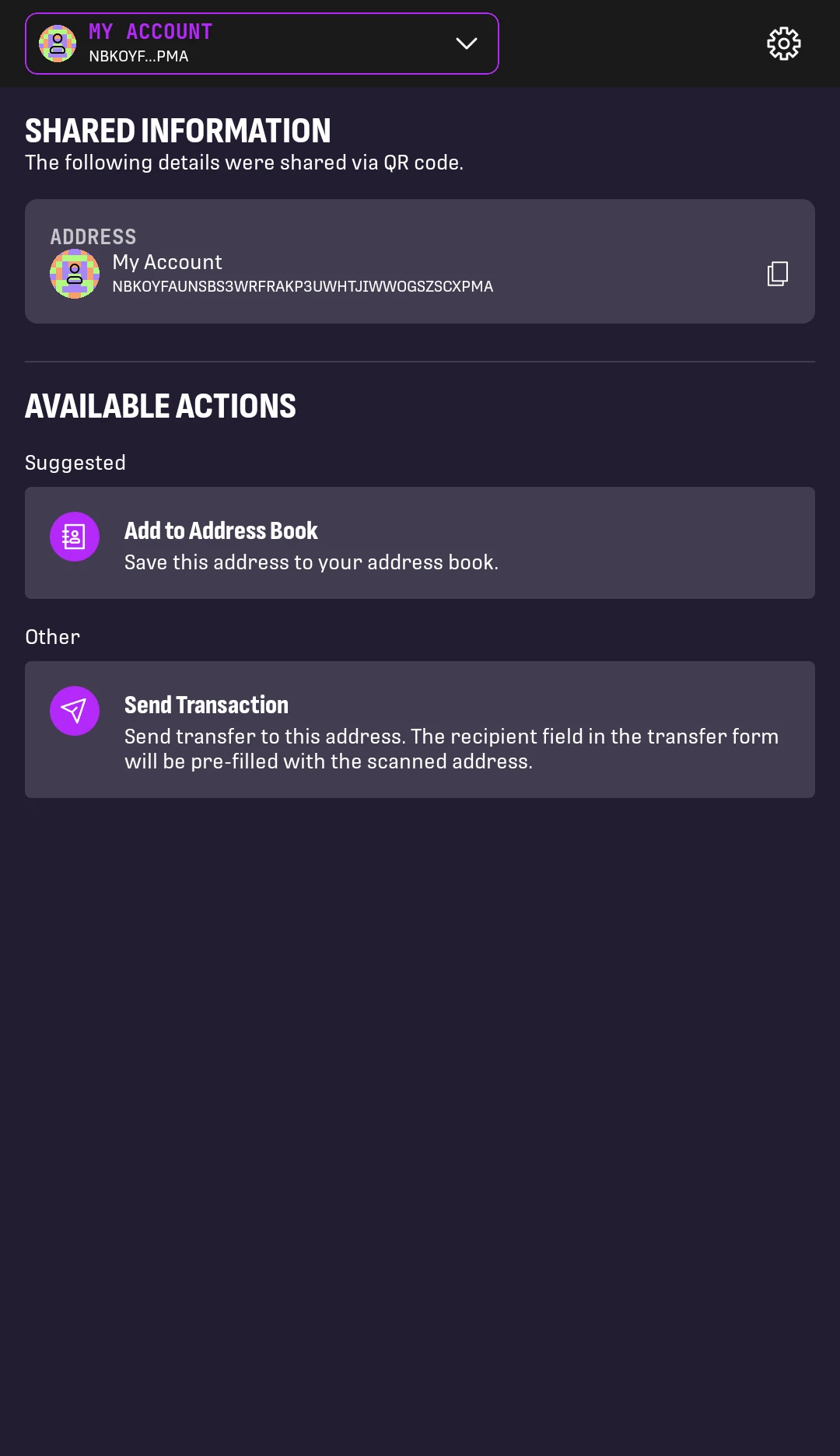
5. The SHARED INFORMATION screen appears on the second device, showing the shared address and a list of available actions.
Tap Send Transaction.
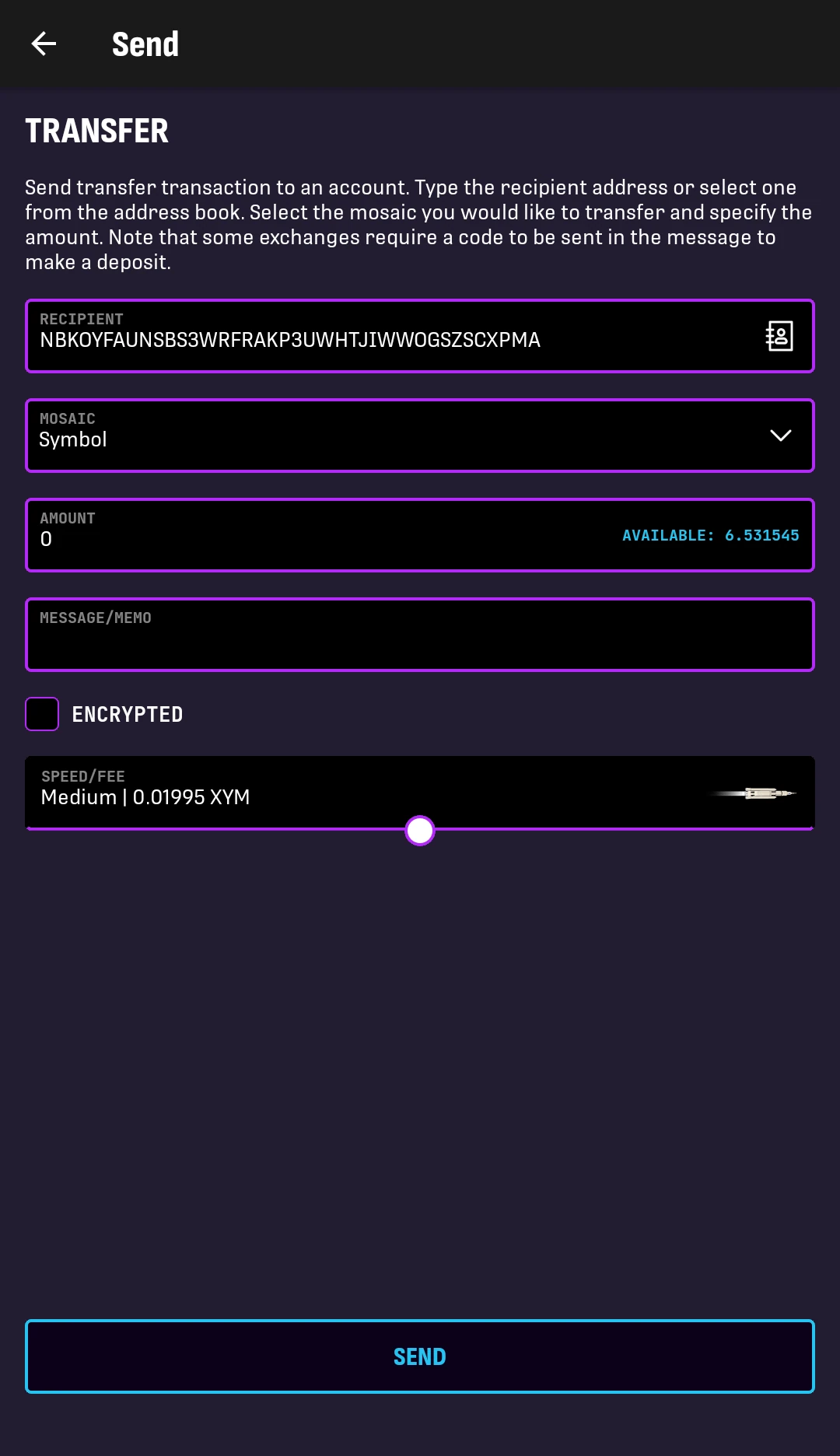
6. The TRANSFER form is shown with the RECIPIENT field already filled in with the shared address.
This guide stops here but you can complete the transaction by following Sending Funds and Messages.