Deleting an Account⚓︎
This page explains how to hide or delete an account from the active wallet in the Symbol Mobile Wallet App.
The wallet's main account, which is the first seed account, cannot be deleted. Other seed accounts can be hidden from the account list, but they cannot be removed permanently because they are derived from the wallet's mnemonic phrase. You can recover a hidden seed account later by following Creating an Account.
Only imported external accounts can be truly deleted. If an imported account's private key is not backed up, deleting it can make the account permanently inaccessible. Follow Exporting an External Account first if you need to back it up from the app.
Prerequisites⚓︎
-
Make sure you have installed the Symbol Mobile Wallet. If you have not done that yet, see the Installing the App guide.
-
You must already have a wallet set up and unlocked in the app. See Creating a Wallet or Importing a Wallet if needed.
-
If you are deleting an imported account, make sure you have backed up its private key.
Imported accounts need a separate backup
Imported accounts are not included in the wallet's mnemonic phrase backup. If you delete an imported account without backing up its private key, you can lose access to it.
How to Hide or Delete an Account⚓︎
Follow these steps to hide a seed account or delete an imported account:
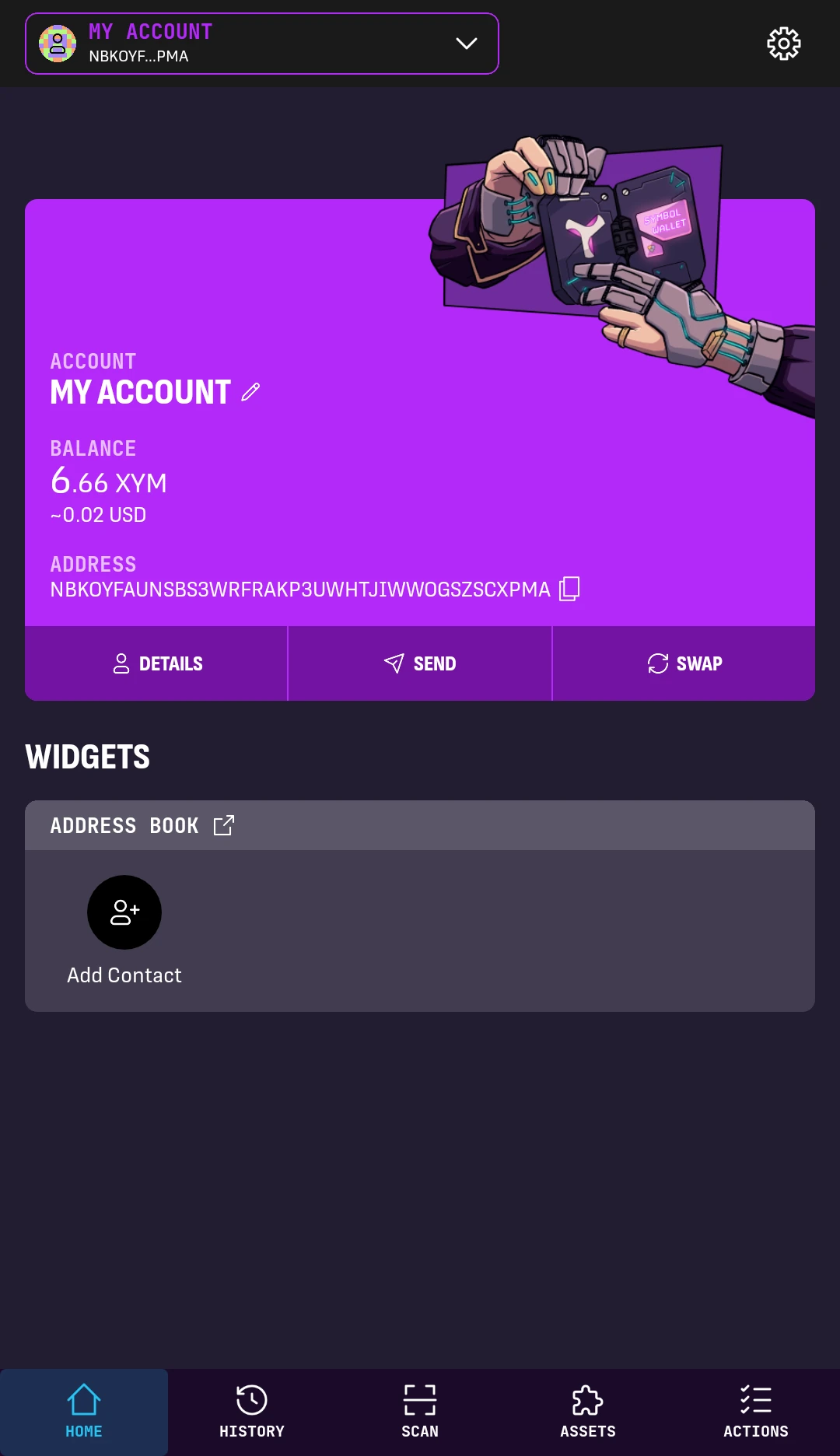
1. From the wallet's HOME screen, tap the account dropdown at the top-left.
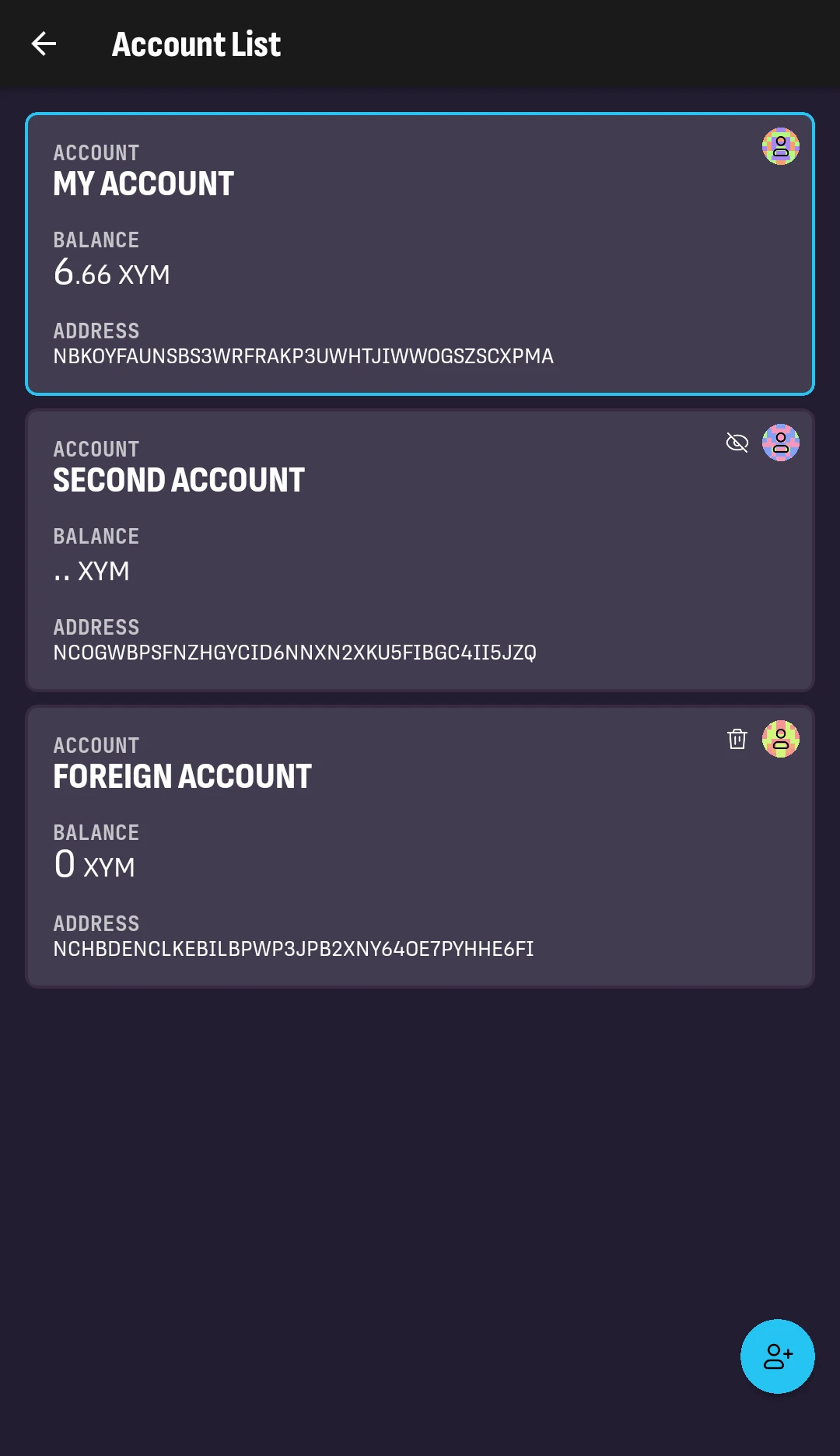
2. Tap the button next to the account icon on the right of the account you want to remove:
-
For seed accounts, hides the account.
-
For imported accounts, removes the account from the app.
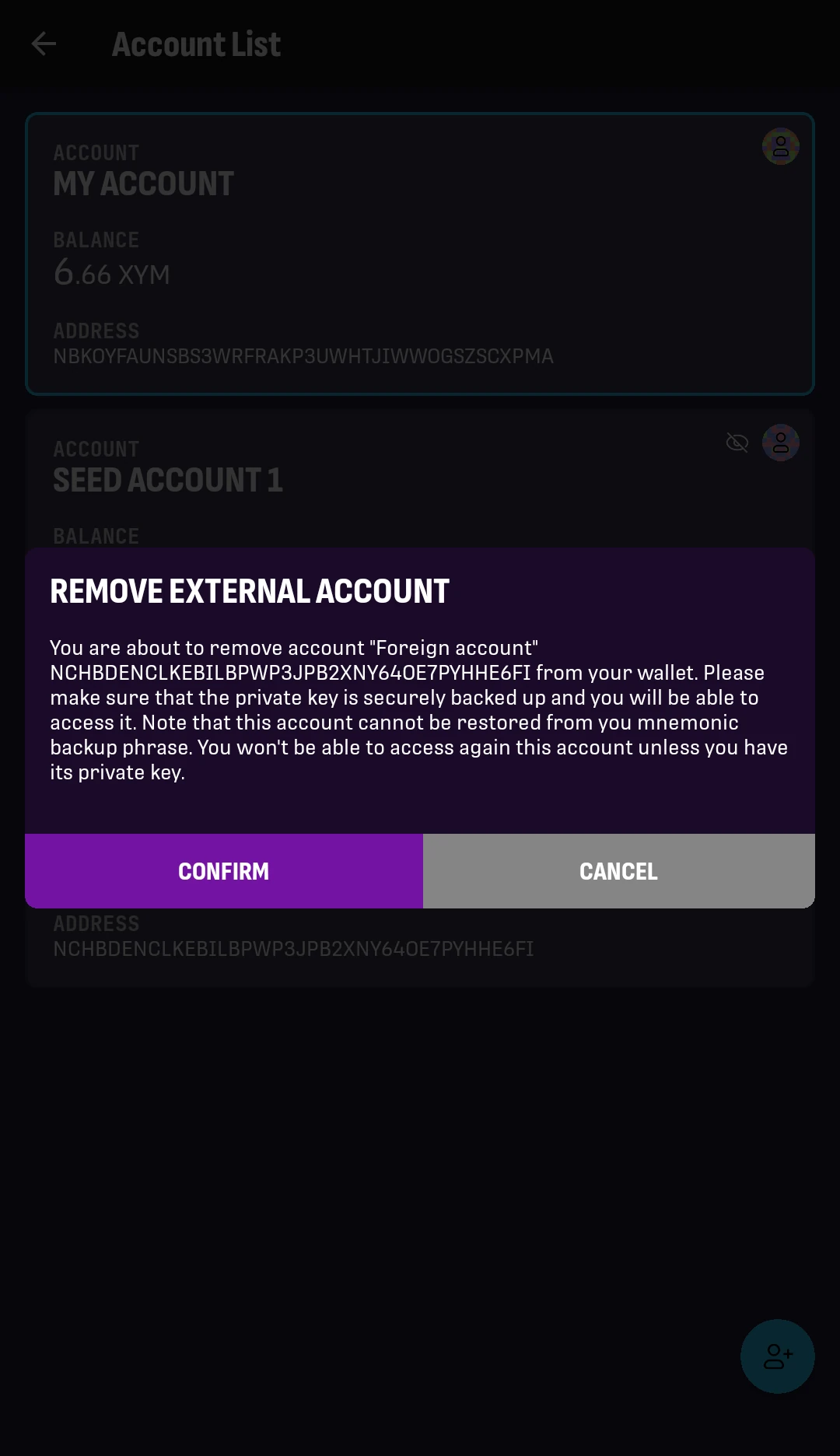
3. If you are removing an imported account, review the confirmation message.
If the private key is backed up, tap CONFIRM.
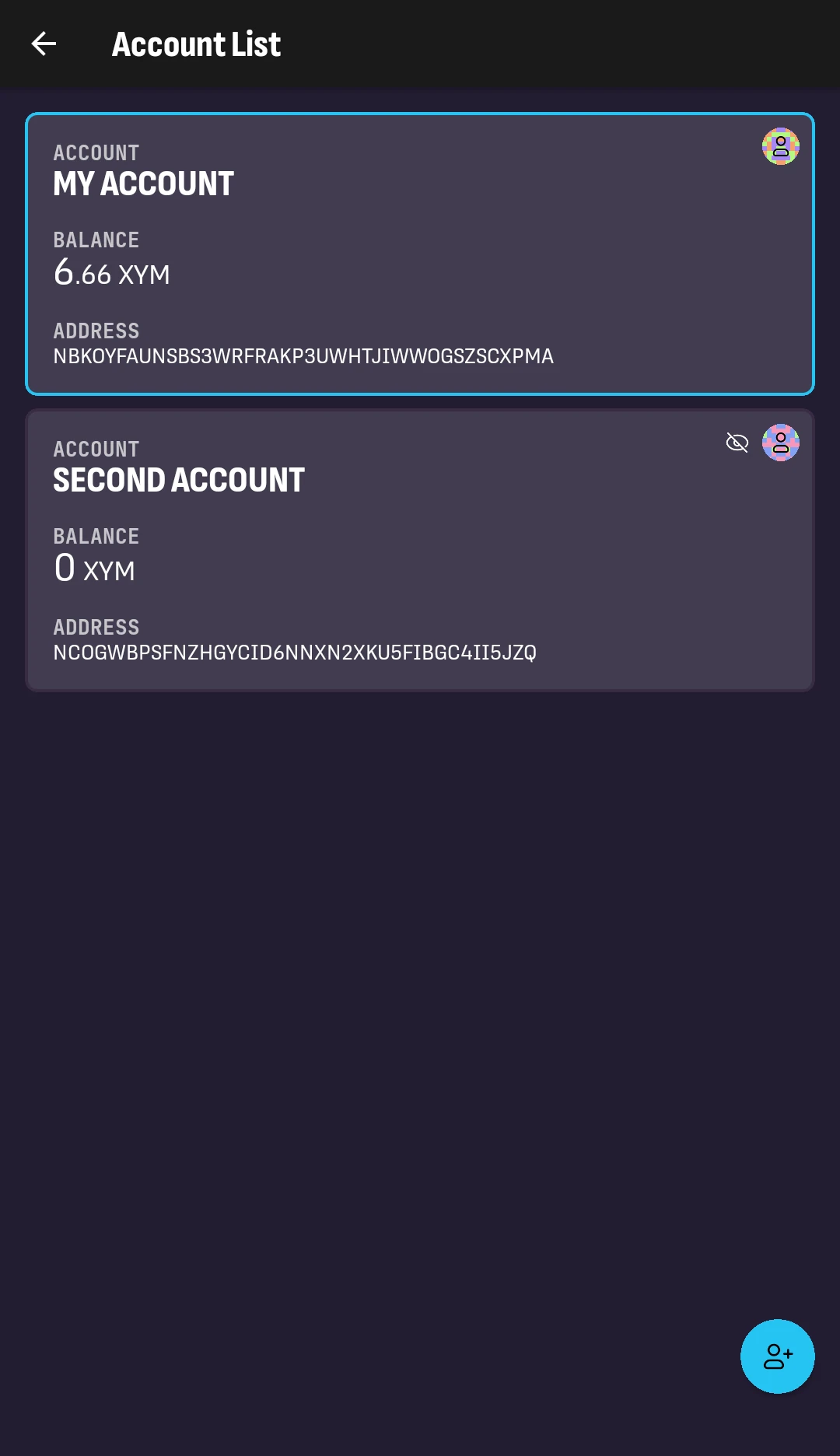
You will be taken back to the updated account list:
Next Steps⚓︎
The account is no longer shown in the account list.
- To show a hidden seed account again, follow Creating an Account.
- To add an external account again, follow Importing an Account.