Sending Funds and Messages⚓︎
This page explains how to send funds and messages from an account in the Symbol Mobile Wallet App.
Funds and messages are sent using a transfer transaction. A transfer transaction can send one or more mosaics to another account, optionally with a message. Messages can also be sent without transferring any mosaic.
Prerequisites⚓︎
-
Make sure you have installed the Symbol Mobile Wallet. If you have not done that yet, see the Installing the App guide.
-
You must already have a wallet set up and unlocked in the app. See Creating a Wallet or Importing a Wallet if needed.
-
The sending account must have enough balance to cover the amount being sent and the transaction fee.
How to Send Funds and Messages⚓︎
Follow these steps to send a transfer transaction:
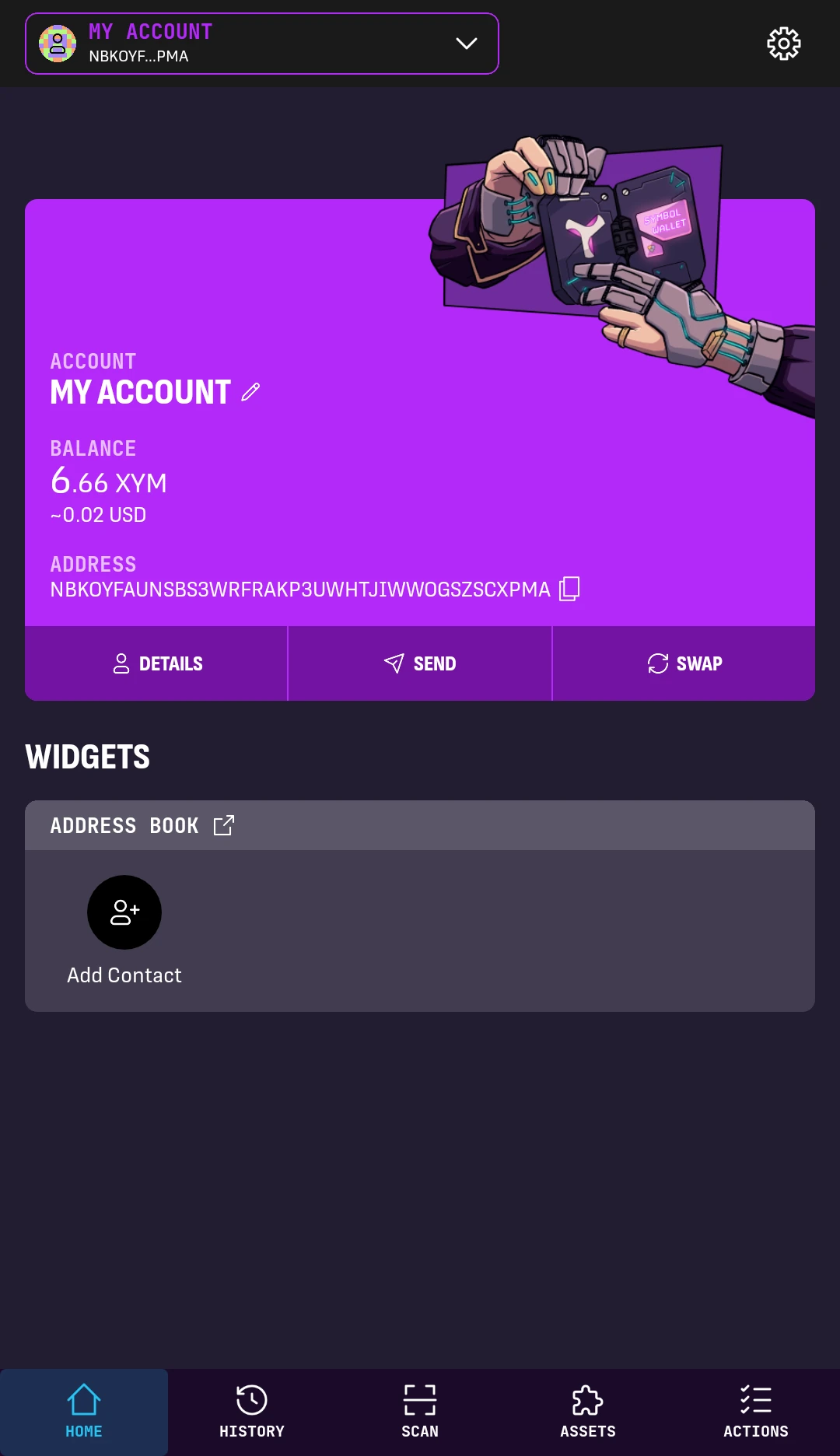
1. From the wallet's HOME screen, tap the SEND button in the middle of the account box.
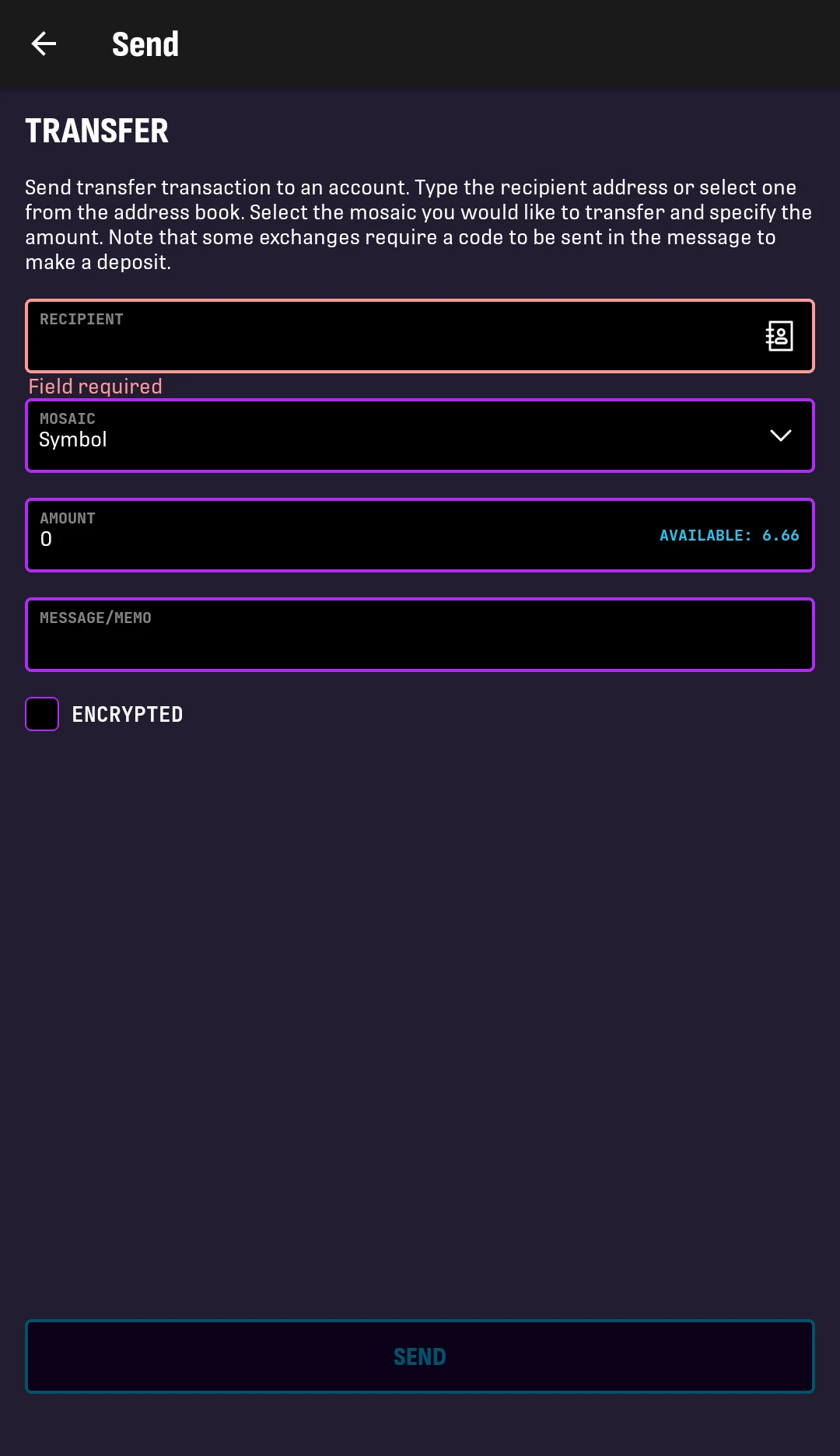
2. Fill in the transfer form:
-
Paste the recipient's address into the RECIPIENT box or use the address book button inside the box to select one of your accounts.
-
Select the MOSAIC to send and enter the AMOUNT.
-
Optionally add a message, and check ENCRYPTED if the message should be encrypted for the recipient.
The SEND button remains disabled until the required fields are complete.
Continue with the next step to see the completed form.
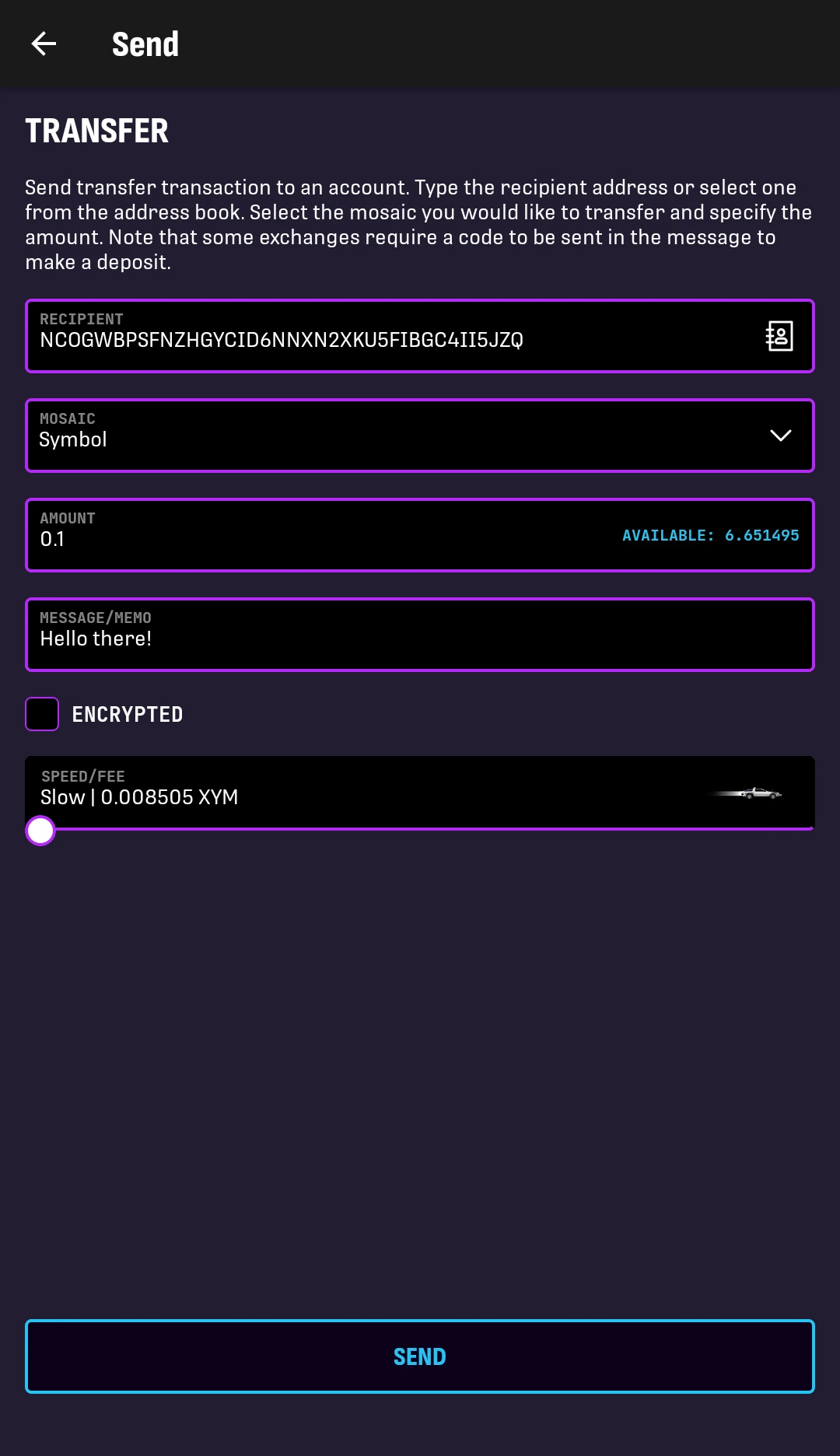
3. After the required fields are filled in, the fee slider appears.
Move the slider to choose the fee and confirmation speed.
Smaller fees typically result in slower transactions but actual confirmation time depends on network conditions. The connected node's minimum fee multiplier also affects how low the fee can be. To inspect or change the connected node, see the Changing the Node guide.
Tap SEND. The next screen will ask for confirmation.
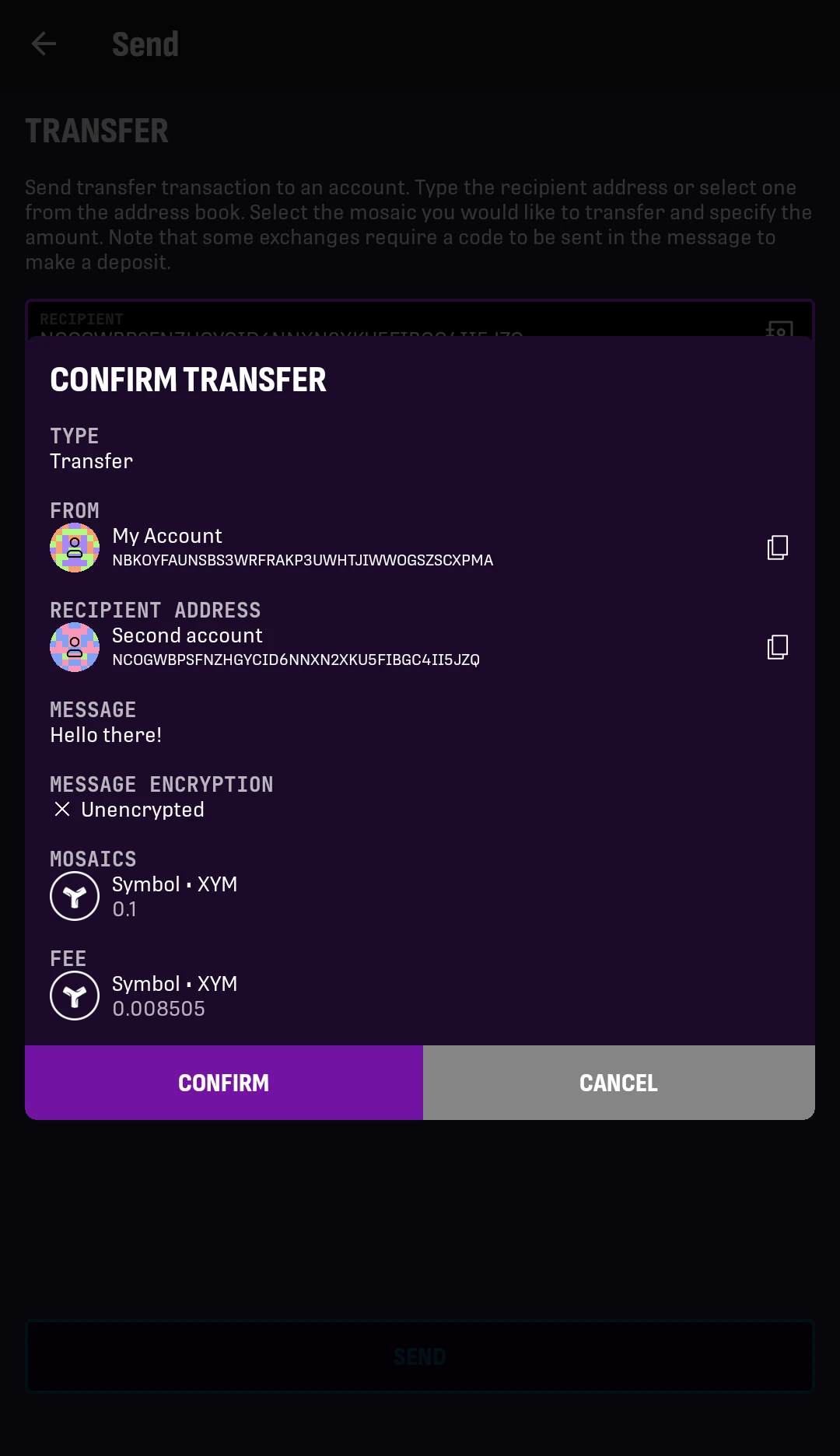
4. Review the transaction details.
If everything is correct, tap CONFIRM.
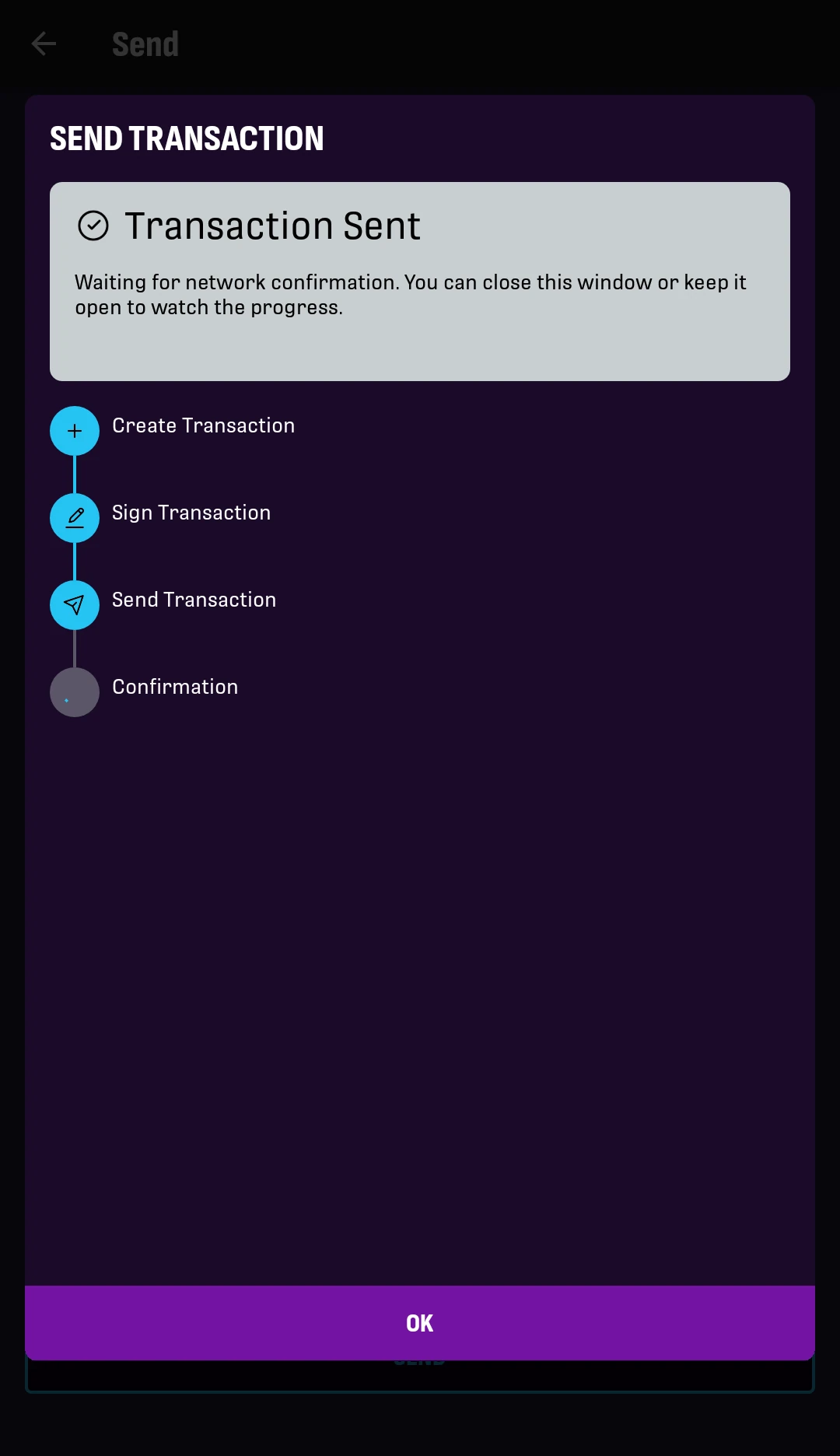
5. Wait while the app creates, signs, and announces the transaction.
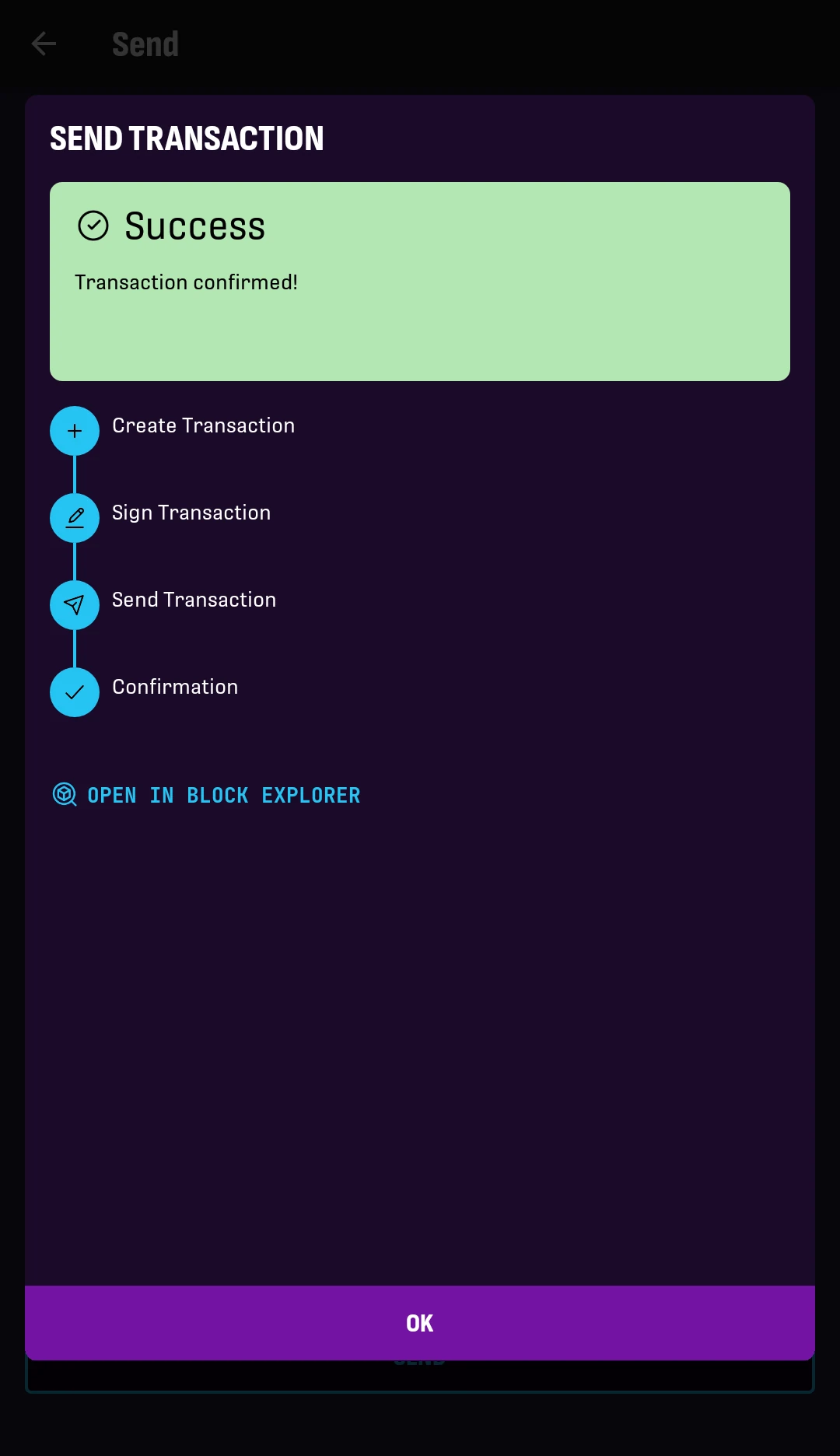
6. The app shows a success message when the transfer transaction is confirmed.
Next Steps⚓︎
After sending a transfer, you can check the transaction history to see it from the sender's or recipient's point of view.