Exporting an External Account⚓︎
This page explains how to back up an external account from the Symbol Mobile Wallet App by exporting its private key.
Seed accounts are derived from the wallet's mnemonic phrase, so they are backed up when you export the wallet backup phrase. External accounts are different: they are imported into the app from a private key, and they are not included in the wallet's mnemonic phrase backup. To back up an external account, export its private key manually as shown here.
Keep private keys secret
Anyone with an account's private key can control that account. Never share private keys, and store backups securely and offline.
Prerequisites⚓︎
-
Make sure you have installed the Symbol Mobile Wallet. If you have not done that yet, see the Installing the App guide.
-
You must already have a wallet set up and unlocked in the app. See Creating a Wallet or Importing a Wallet if needed.
-
You need an external account in the active wallet. See Importing an Account if needed.
-
You need the wallet PIN code.
How to Export an External Account⚓︎
Follow these steps to reveal and copy the private key for an external account:
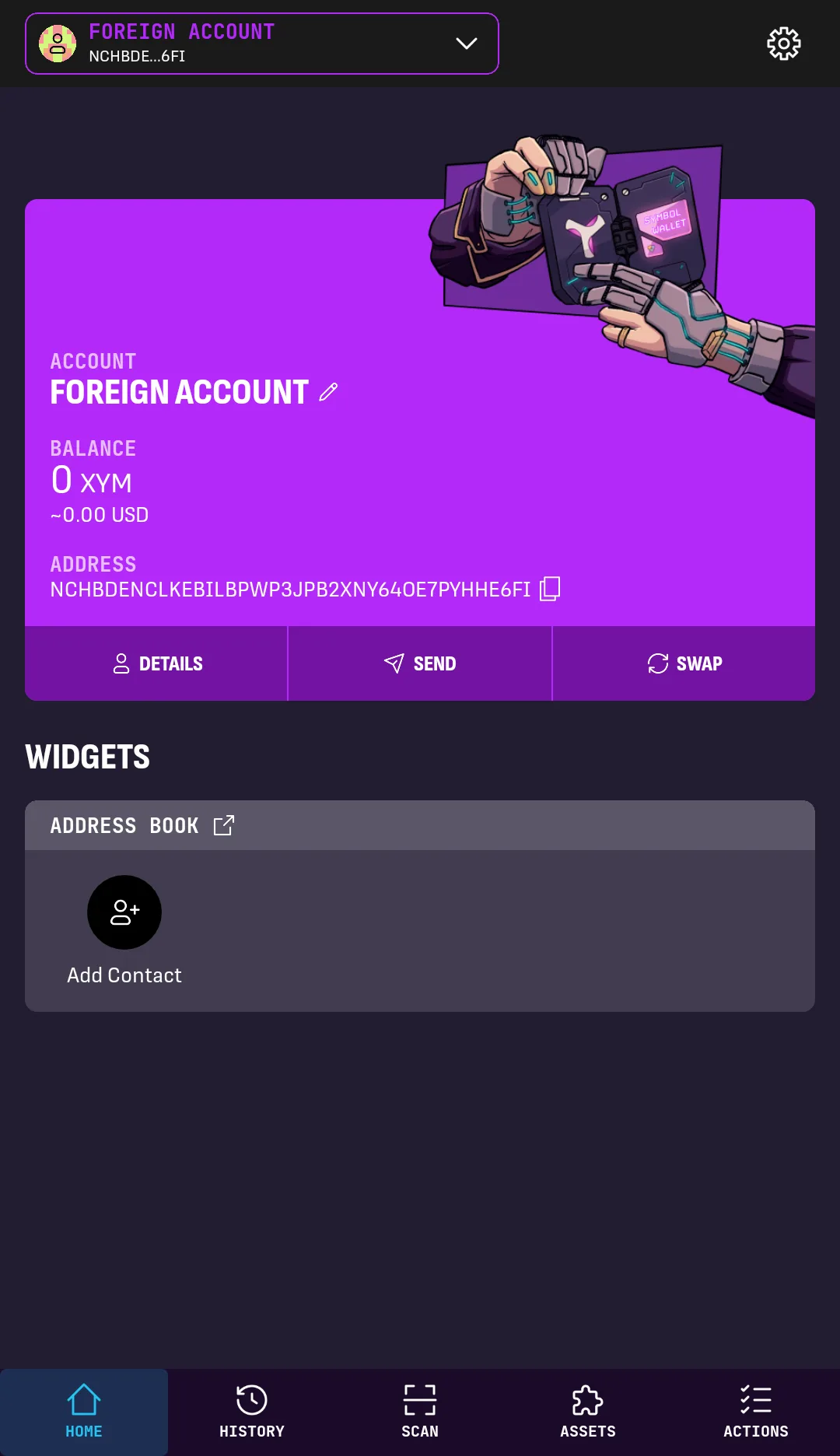
1. From the wallet's HOME screen, select the external account you want to export.
Tap DETAILS on the left of the account box.
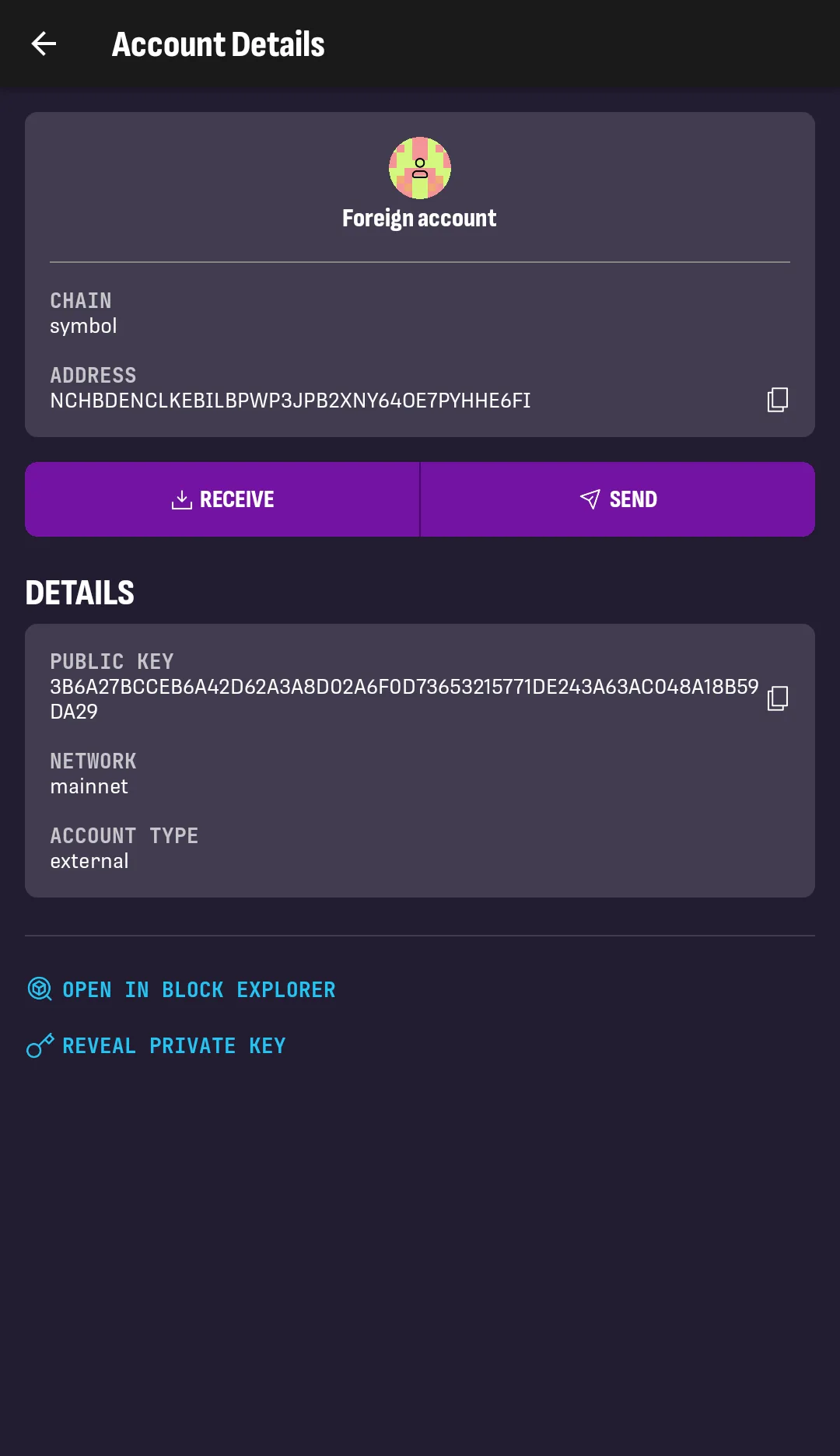
2.
In the DETAILS box, check that ACCOUNT TYPE is external.
If it is not, follow the Exporting a Wallet guide instead.
Tap REVEAL PRIVATE KEY.

3. Enter your PIN code to unlock the wallet.
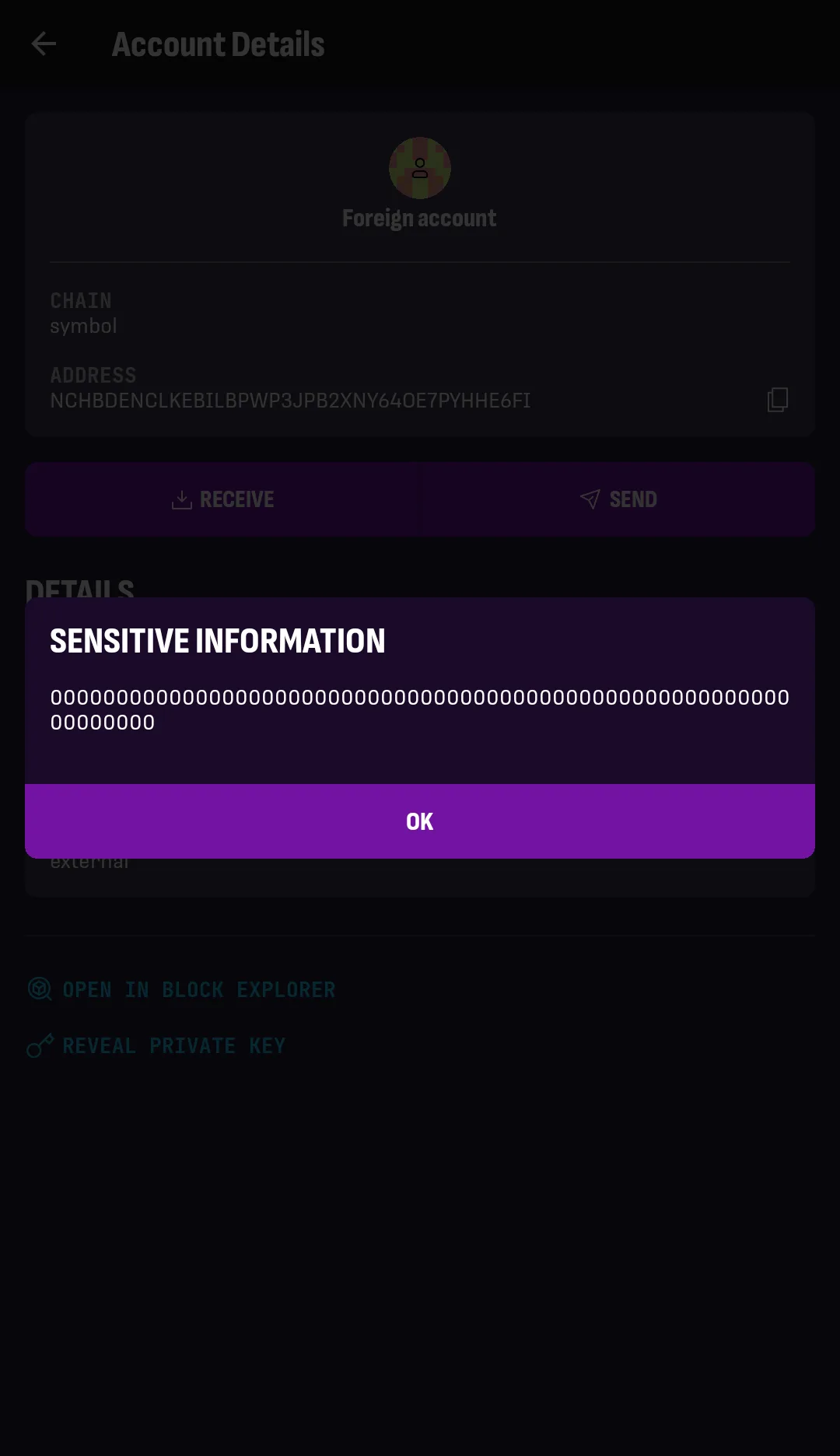
4. The private key is shown.
Tap COPY to copy it.
The private key is now copied to the clipboard, but it is not backed up yet. Store it somewhere secure and offline, or print it and keep the hardcopy in a safe place.
- Never send a private key by chat, email, or any other channel someone else can access.
- Keep private key backups in separate secure places.
Next Steps⚓︎
- Use Importing an Account to import this private key into another wallet.